Trading UI kit
for Figma
Order entry, markets and position screens for investing and trading products, in light and dark. Every price, quantity and cash figure comes from the same portfolio as the rest of Viola UI, so the trade screens agree with the dashboard.
What’s inside
Every trading screen, in light and dark
- Trade, empty
- Search an instrument to load its quote, chart and order ticket.
- Trade, buy
- Price chart, quote, your position and a buy ticket for VWCE.
- Trade, sell
- The same flow for selling, with estimated proceeds instead of cost.
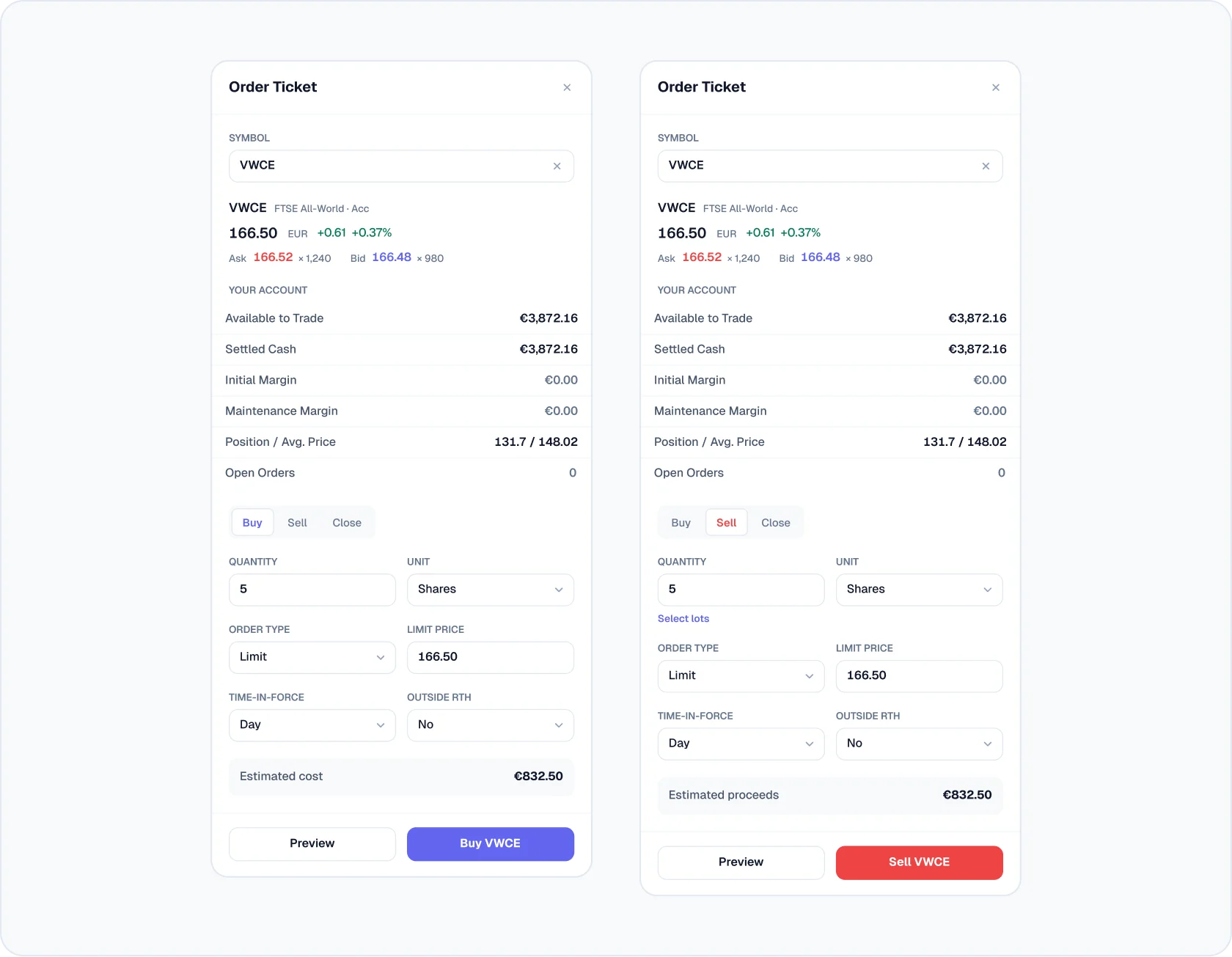
- Order ticket
- A 420px ticket in empty, buy and sell states, ready to drop into your own layout.
- Markets
- The markets overview, in light and dark.
The order example
Buy 5 VWCE. The numbers check out.
- 15 shares at a €166.50 limit, as a day order.
- 2Estimated cost: 5 × €166.50 = €832.50, before the €3.00 commission.
- 3Available to trade: €3,872.16, the same cash figure the dashboard shows.
Trading conventions
The details traders notice
- Candles have their own colours
- Rising and falling candles use teal and brick, so a red candle is never mistaken for a loss in the account.
- Sell says proceeds
- A sell order shows estimated proceeds, not cost.
- Cash account, no margin
- Margin fields show €0.00 because the example is a cash account, so there is no borrowing UI to explain.
- Tabular figures
- Prices, quantities and totals line up and don’t jump as they update.
How to design it
Designing a trading UI in Figma, step by step
- 1. Set up colour roles
- Give gains and losses, candles, actions and backgrounds separate tokens, each with a light and a dark value. If green means both “profit” and “buy”, users can’t tell which one they’re looking at.
- 2. Pick a font with tabular figures
- Prices, quantities and totals need digits of equal width so columns stay straight and numbers don’t jump as they update.
- 3. Design the order ticket first
- Quantity, order type, limit price, time in force, then the estimated cost or proceeds and a preview before the user submits. Everything else on the screen supports this.
- 4. Add the price chart
- Candles with their own colours, timeframe tabs and volume. Keep the current price and day change next to the chart, not only inside it.
- 5. Show the account beside the order
- Available to trade, settled cash, margin and the current position, so the user can check an order before placing it.
- 6. Design the states
- No instrument selected, quotes loading, market closed, and an order that fails. These are the screens users remember when something goes wrong.
- 7. Build with auto layout and variants
- Tickets, tables and cards in auto layout, and buttons with default, hover, active and disabled states as variants.
FAQ
Trading UI kit questions
- What screens does a trading app need?
- At least a markets overview, an instrument screen with chart and order ticket, the user’s positions, order history and a way to move money in and out.
- Should buy be green and sell red?
- Many apps do it. In Viola UI, buy uses the accent colour and sell uses red as a destructive action, while green is kept for gains, so a green number always means money made.
- Which font works for a trading UI?
- Any font with tabular figures. Viola UI uses Geist, with tabular figures on every price and amount.
- Does the kit work in dark mode?
- Yes. Every trading screen comes in light and dark, switched with Figma variable modes.
- How much does it cost?
- $49 for one designer, $179 for your whole company, one payment. A free version is available to try first.
Trading screens
that add up.