A fintech dashboard is mostly charts and numbers, and users make decisions about their own money from them. A chart that’s unclear about the period, the currency or what a total includes can lead them to the wrong one. Most chart advice is written for analytics dashboards, so it skips the rules that matter here.
The short version: pick each chart by the question the user is asking, say what period and currency it shows, give every change a sign, keep green and red for gains and losses, and make sure every number on the dashboard agrees with the others.
I design fintech interfaces and build Viola UI, a Figma kit for finance products. Below are the charts a finance dashboard needs, where they go, the rules they follow, and a free Figma file with all of them in light and dark.
Which charts a fintech dashboard needs
Start from what the user wants to know, not from the chart types you have. Most finance screens answer one of five questions.
| The user asks | Use | Why |
|---|---|---|
| How is my money doing over time? | Line chart with a benchmark | A line shows the path; the benchmark shows whether it was good |
| What am I invested in? | Allocation bar or donut, with percentages | Shows parts of a whole; the numbers make shares comparable |
| What did I gain or lose? | Bars from zero, gains and losses | Bars make size comparable; zero is the line that matters |
| Which way is this asset moving? | Sparkline in the table row | Direction at a glance, next to the exact number |
| How did the price move each day? | Candlestick chart | Open, high, low and close in one mark, the format traders expect |
Donut or bar for allocation? A donut works for up to about five segments and a home screen. Past that, or when people compare holdings, a horizontal bar sorted by size reads faster. Either way, write each share as a number.
Where the charts go on a finance dashboard
A dashboard answers the questions in order of how often people ask them. That order decides the layout.
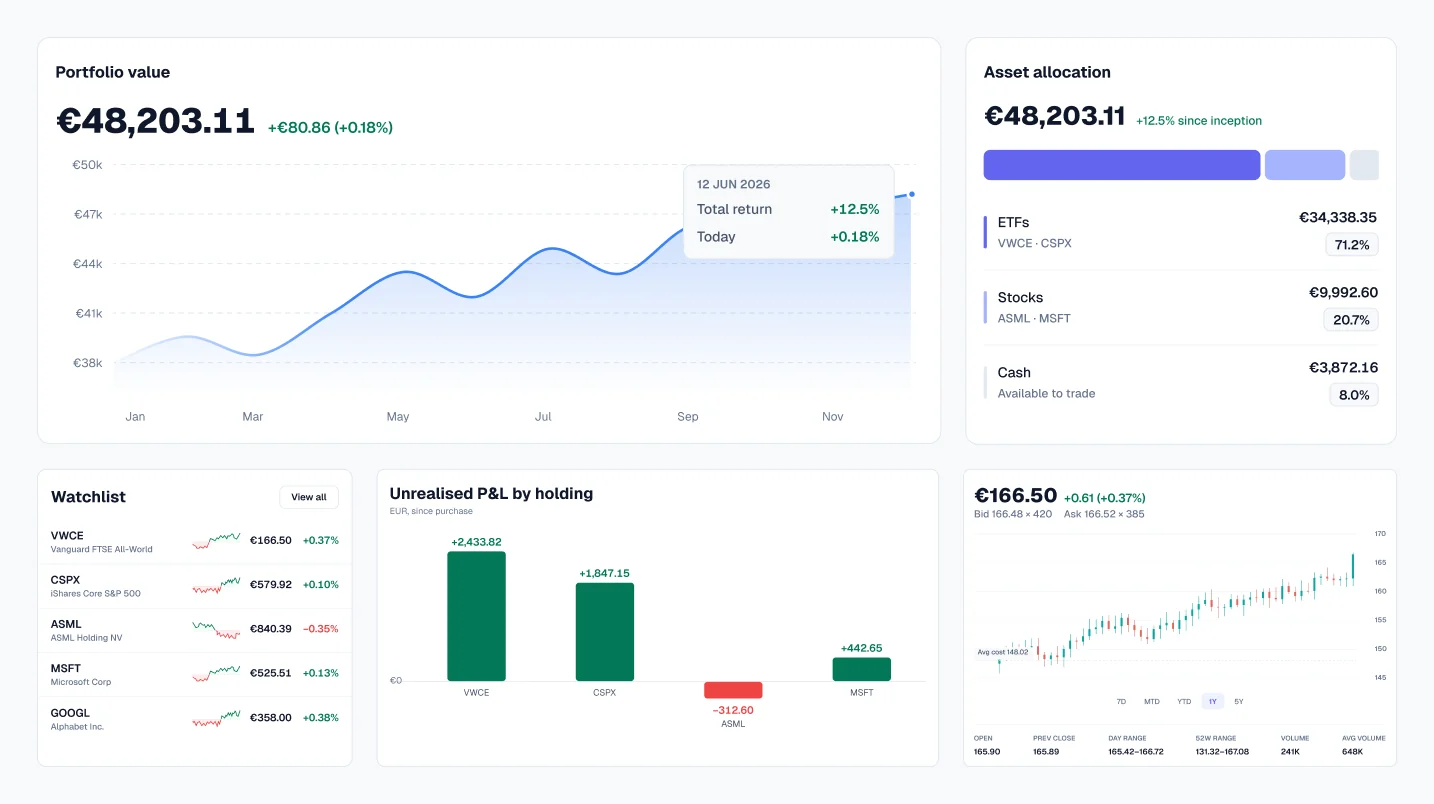
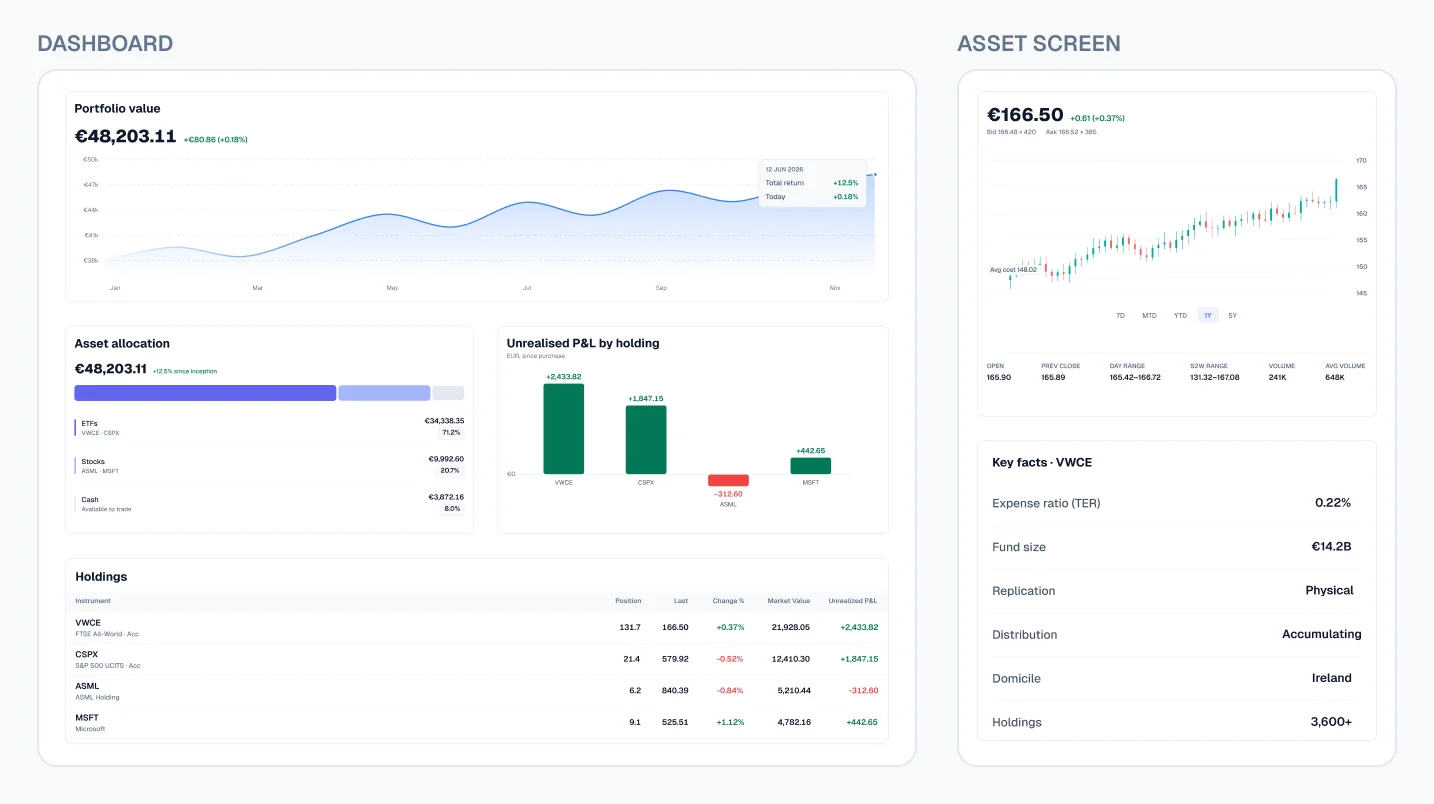
- 1. Top: the balance and its trend. The total, its change with sign and period, and the performance line with a benchmark right under it. This is what most users open the app to see.
- 2. Middle: what’s inside the total. Allocation and gains or losses, side by side. Their numbers must add up to the balance above.
- 3. Below: the holdings table. One row per position, with value, change and a sparkline. The rows sum to the holdings total, and holdings plus cash equals the balance.
- 4. Separate screen: trading detail. Candlesticks belong on an asset or trade screen, not the overview, where most users only want to know how they’re doing.
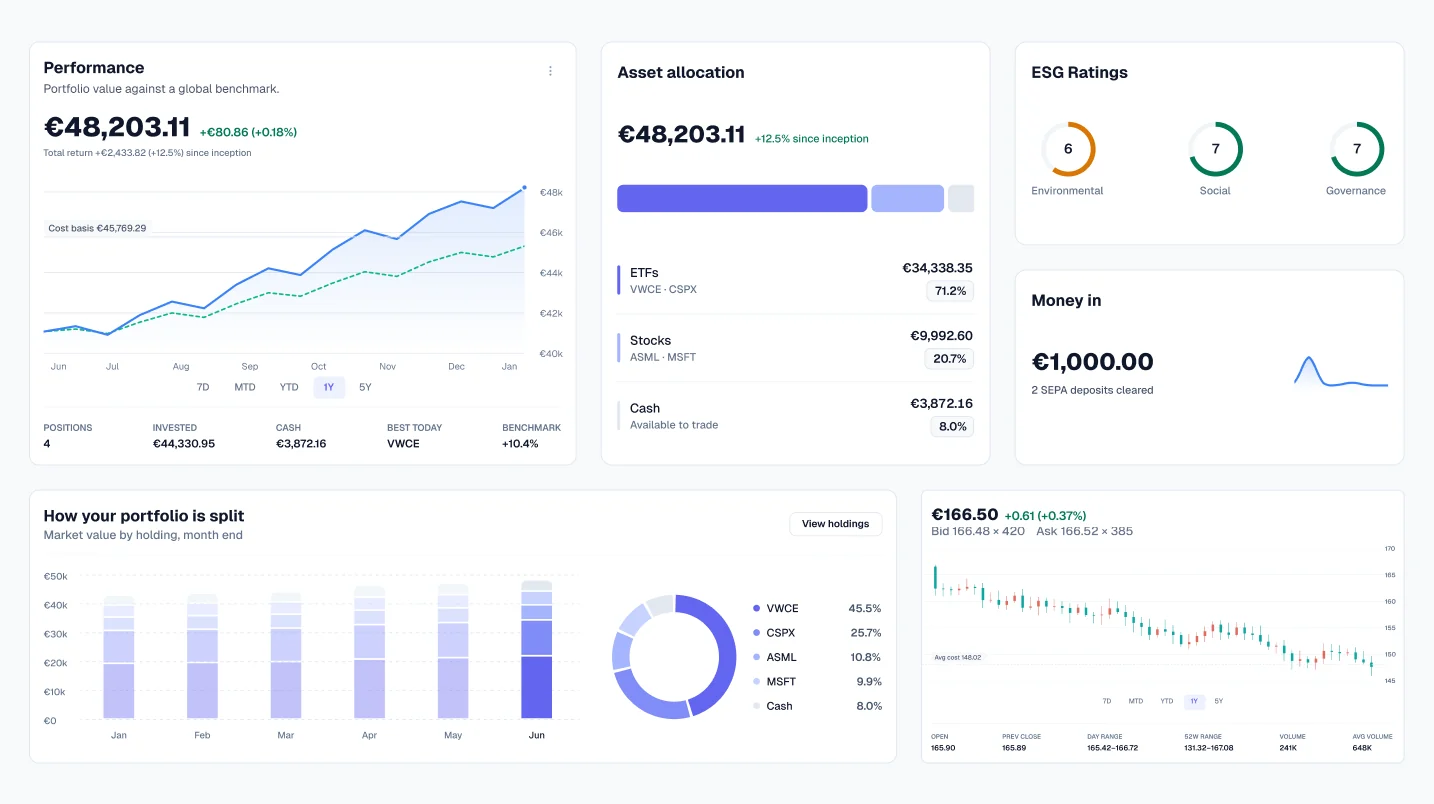
In Viola UI’s dashboard, for example, the balance of €48,203.11 is €44,330.95 in holdings plus €3,872.16 in cash, and the performance line, allocation and holdings table all end at those same figures.
8 rules for finance charts
| Rule | Do | Don’t |
|---|---|---|
| 1. Always show the period | +12.5% · 1Y, with period tabs (7D, MTD, YTD, 1Y, All) | +12.5% with no time range |
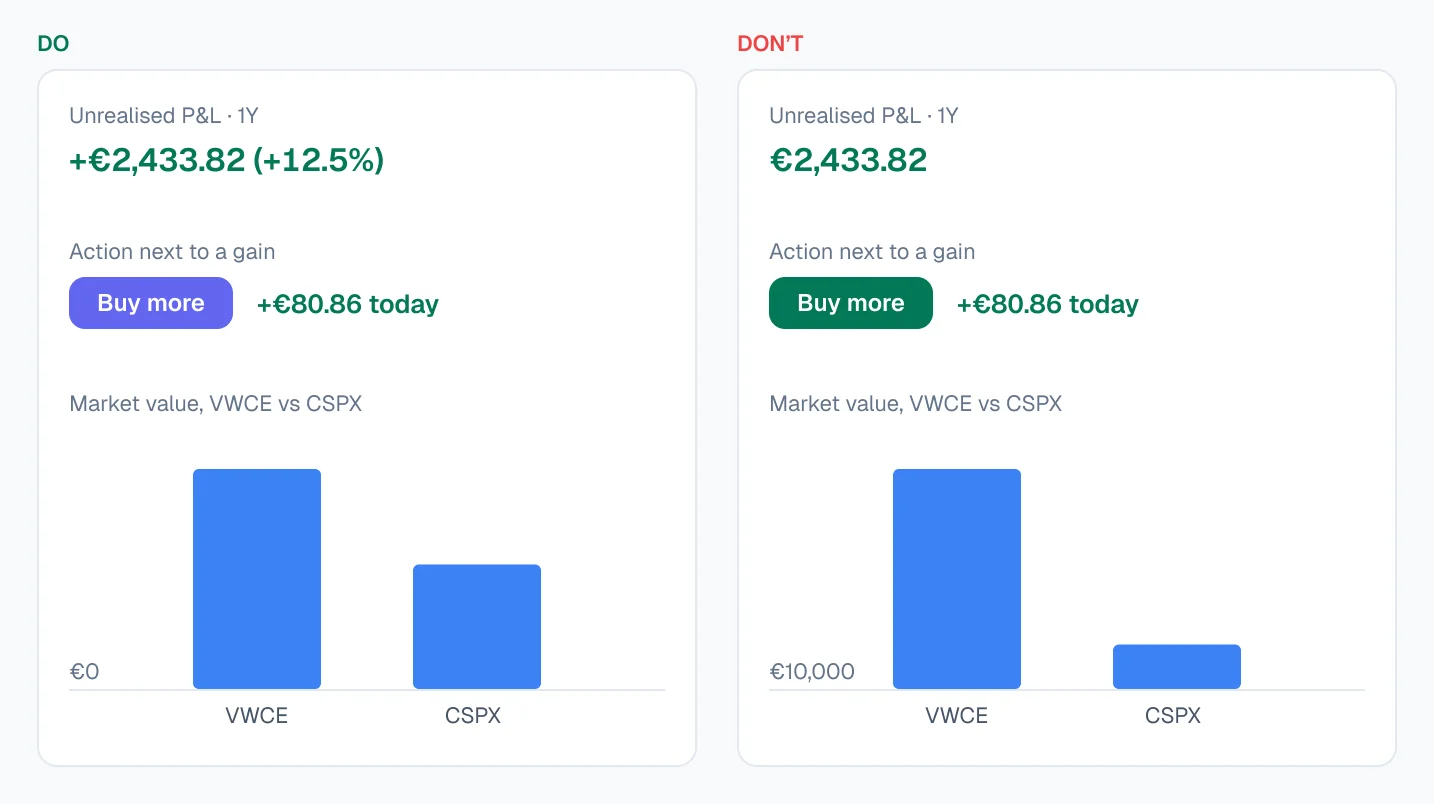
| 2. Give every change a sign | +€2,433.82 (+12.5%) | A green number with no plus sign |
| 3. Keep green and red for gains and losses | Green and red only on P&L values | Green buttons next to green gains |
| 4. Use tabular figures | Digits of equal width, so amounts line up | Proportional digits that jump when values update |
| 5. Start bars at zero | Bars measured from €0 | A bar axis starting at €40,000 |
| 6. Label the currency | “Total balance (EUR)” or € on the axis | Bare numbers on a multi-currency account |
| 7. Compare against something | Portfolio line next to a benchmark | A lone line the user can’t judge |
| 8. Make the numbers agree | The chart ends at the same total the dashboard shows | A chart total that differs from the card above it |
Why these matter more in finance
Colour carries meaning before you use it. In most Western markets, green reads as gain and red as loss. In China, Japan and Korea it’s the other way round, so make the gain and loss colours tokens you can swap per market. Use the same green for a “Save” button and users start reading buttons as numbers, and numbers as decoration.
A cropped axis changes the decision. Starting a bar chart at €40,000 makes a 2% difference look like half. In a fund comparison, that’s the difference between “slightly better” and “obviously better”.
One wrong number costs trust in all of them. If the chart ends at €48,203.11 and the balance card says €48,230.11, users don’t know which to believe, and they start doubting the rest of the product too.
Design the states, not just the happy chart
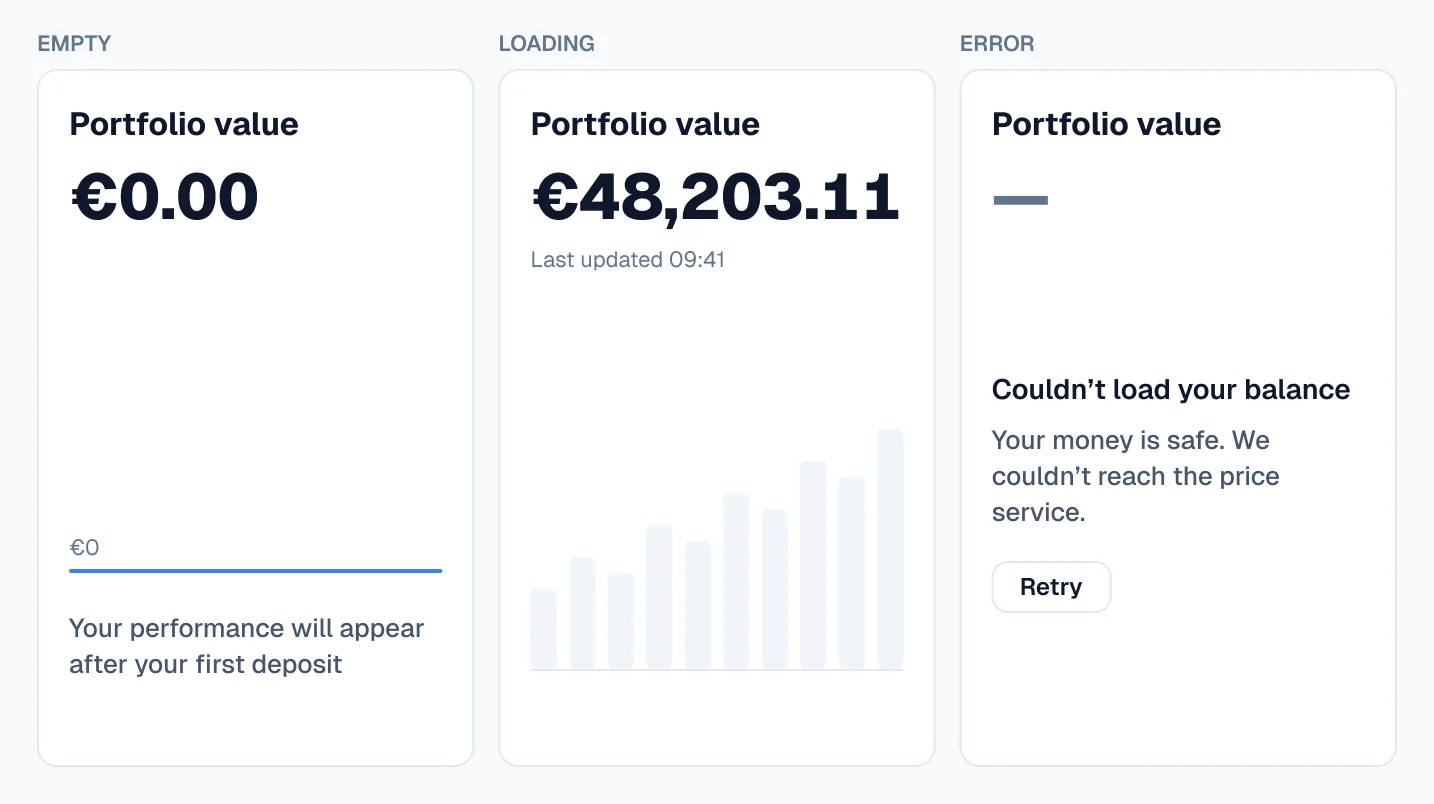
A chart full of data is the easy version. Finance users also see charts while data loads, after an error, and on day one with nothing in the account.
- Empty: a new account has no history. Show a flat line at zero with “Your performance will appear after your first deposit”, not a blank box.
- Loading: use a skeleton in the chart’s shape, and keep the last known balance visible, labelled with its time.
- Error: never show a failed load as €0.00. To the user that reads as “my money is gone”. Show “Couldn’t load your balance” with a retry instead.
- Partial data: if prices for a day are missing, break the line or mark the gap. Don’t draw a straight line across it as if you knew the values.
- Stale data: markets close. Show when the price was last updated, especially on weekends.
Dark mode and accessibility
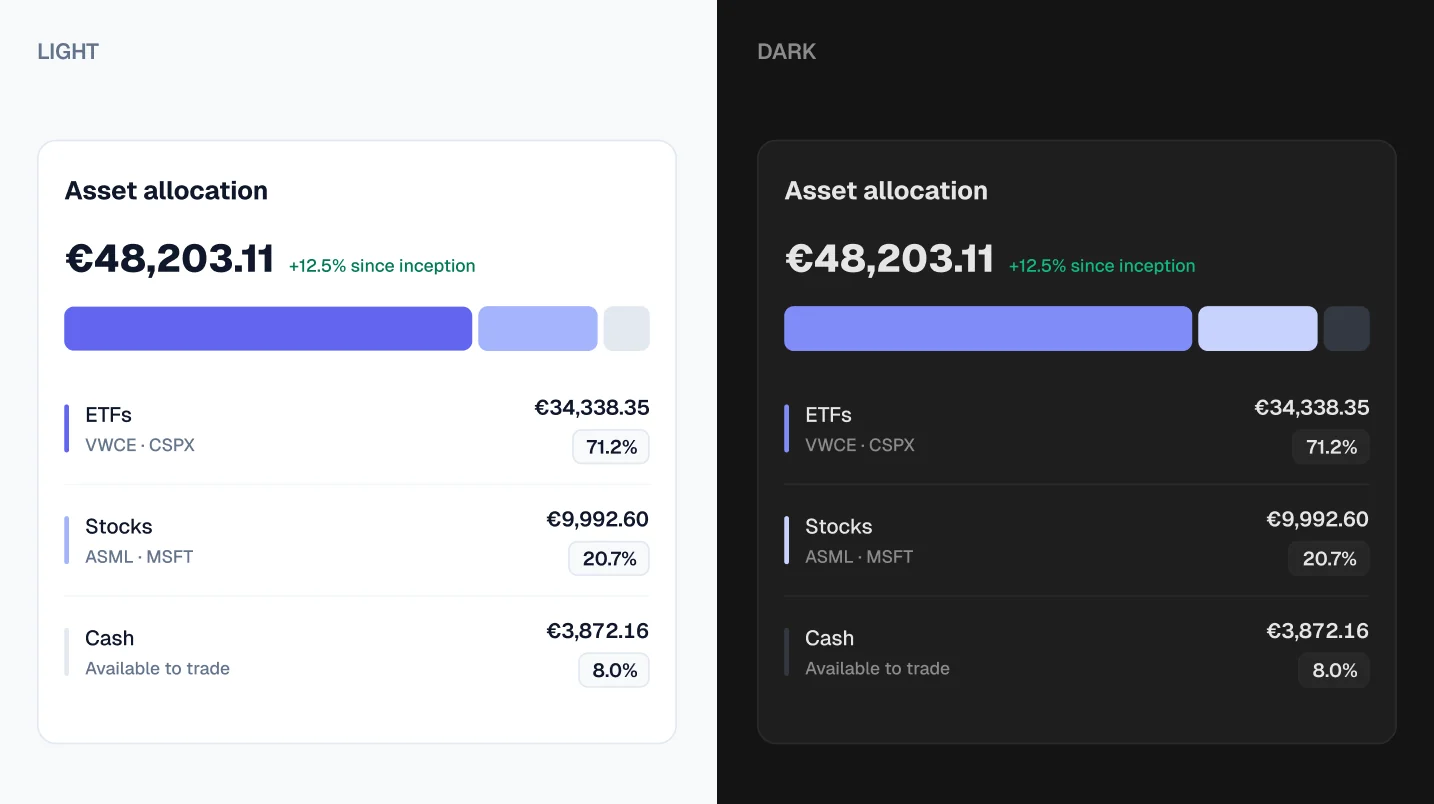
Give greens and reds their own dark values. The green that works on white often looks neon or muddy on a dark background. Set gain and loss colours as variables with a separate value per mode, and check both.
Never rely on colour alone. About 1 in 12 men has some form of colour blindness, and red and green are the classic pair that gets confused. The sign and the percentage (+12.5%, −0.62%) carry the meaning; colour only reinforces it.
Keep labels readable at small sizes. Axis labels and tooltips in finance are dense. Make sure they still meet contrast requirements in dark mode, where grey-on-dark text fades first.
Make the tooltip say everything. Date, value, change and currency in one place, so a screen reader or a quick glance gets the full picture without decoding the axis.
Free finance dashboard charts for Figma
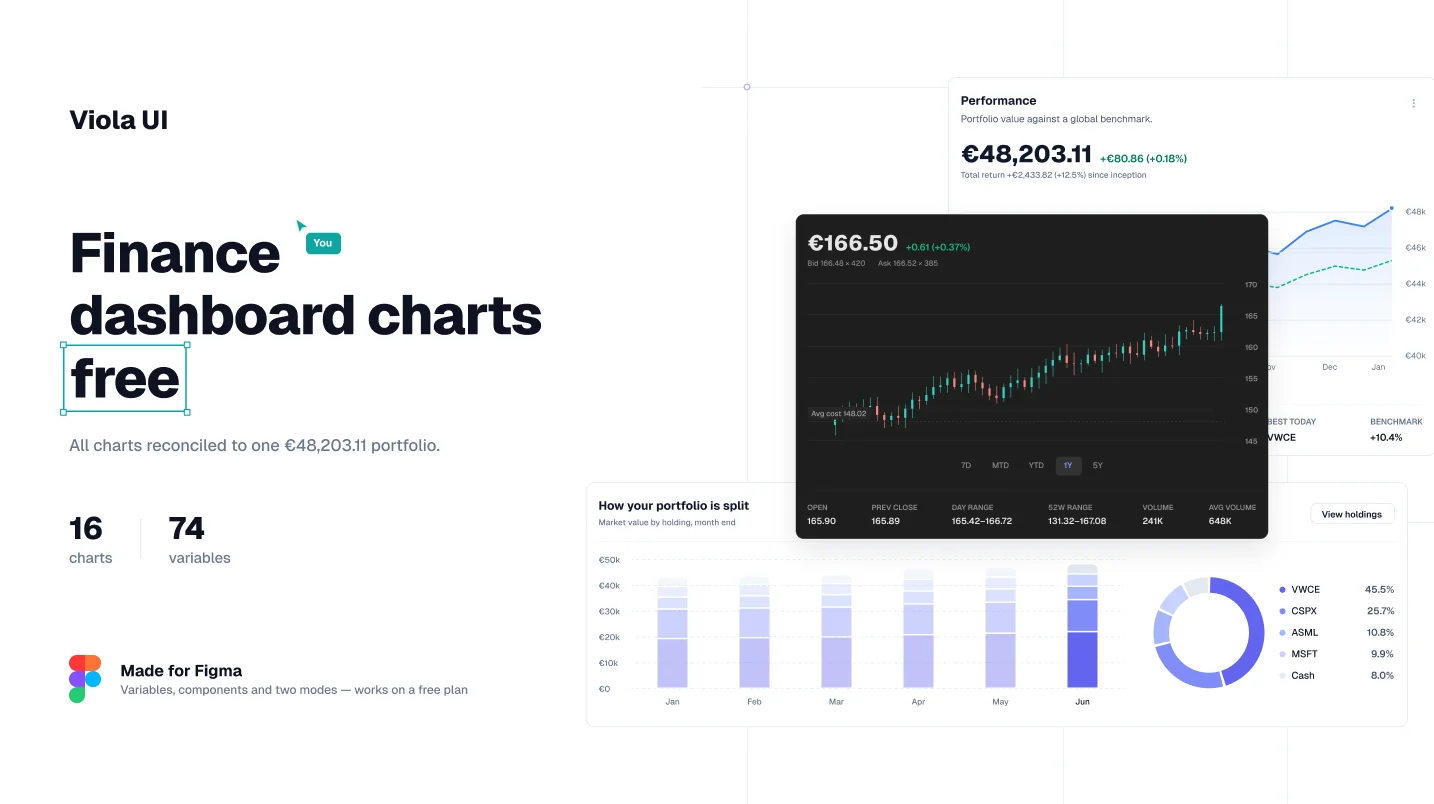
To save you building these from scratch, I’ve released the charts from Viola UI as a free Figma file. Every chart follows the rules above, comes in light and dark, and draws from one portfolio, so the numbers in one chart agree with the next.
- Portfolio performance with a benchmark line and period tabs
- Asset allocation with percentages
- Profit and loss bars from zero
- Sparklines for table rows
- Candlestick quote card
Free for personal and commercial projects. Get the free charts on Figma Community
Checklist before you ship a finance chart
- Period shown and switchable
- Every change has a sign and a percentage
- Green and red used only for gains and losses, and swappable per market
- Tabular figures on every amount
- Bars start at zero
- Currency labelled
- A benchmark or comparison where performance is shown
- Totals match the rest of the screen
- Empty, loading, error and stale states designed
- Checked in dark mode and without colour
FAQ
What charts does a fintech dashboard need?
Usually five: performance over time with a benchmark, allocation, gains and losses, sparklines in tables, and candlesticks if users trade. Pick by the question the screen answers.
Donut or bar chart for portfolio allocation?
A donut for up to about five segments on an overview screen. A sorted horizontal bar when there are more holdings or users need to compare them.
Should gains always be green?
In most Western markets, yes. In China, Japan and Korea red usually means a rise, so keep the colours as swappable tokens.
Are the Figma charts really free?
Yes, for personal and commercial projects, including client work. Switching light and dark works on a free Figma plan; editing the colour values in each mode needs a paid plan.
Need the whole dashboard?
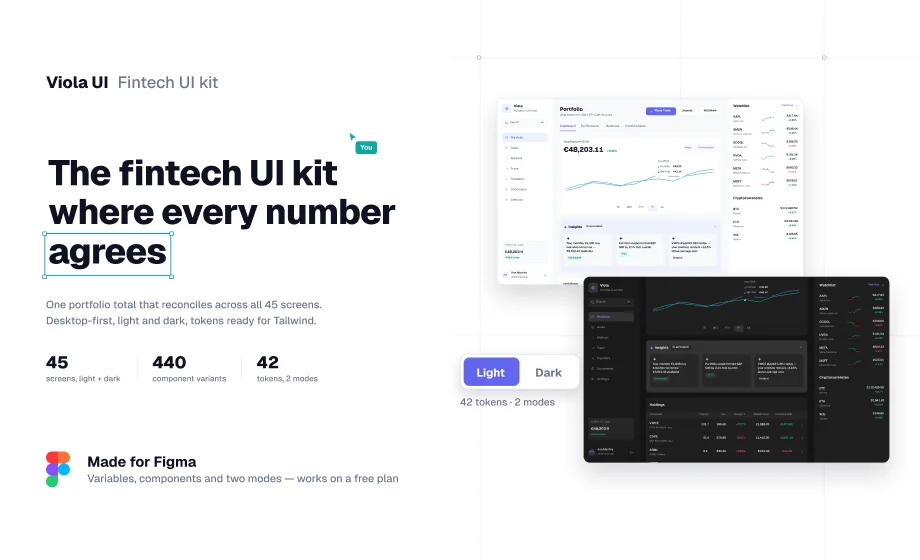
The full Viola UI kit puts these charts into 45 desktop screens in light and dark: portfolio dashboard, markets, fund research, trading, transfers, cash and tax documents, all running on one portfolio. $49 for one designer, $179 for your whole company.
Sources
- Setproduct Charts, read 14 October 2026

WRITTEN BY
Kseniya Savitsyna
Product designer working on fintech & AI products, and the designer behind Viola UI.