An AI feature in a finance product is judged by what it refuses to do. A chat assistant that guesses a restaurant is forgivable. One that guesses a balance, or moves money on its own, is not.
The short version: the AI should never act without approval, never advise, never invent a number, never hide that it is AI, never be the only way to do something, never make a change you can’t undo, and never guess silently. Each “never” below comes with the pattern to use instead.
I design fintech interfaces and build Viola UI, a Figma kit for finance products. These are the rules I designed its AI copilot around, and the copilot screens are free to download at the end.
7 things the AI should never do
1. Never move money without approval
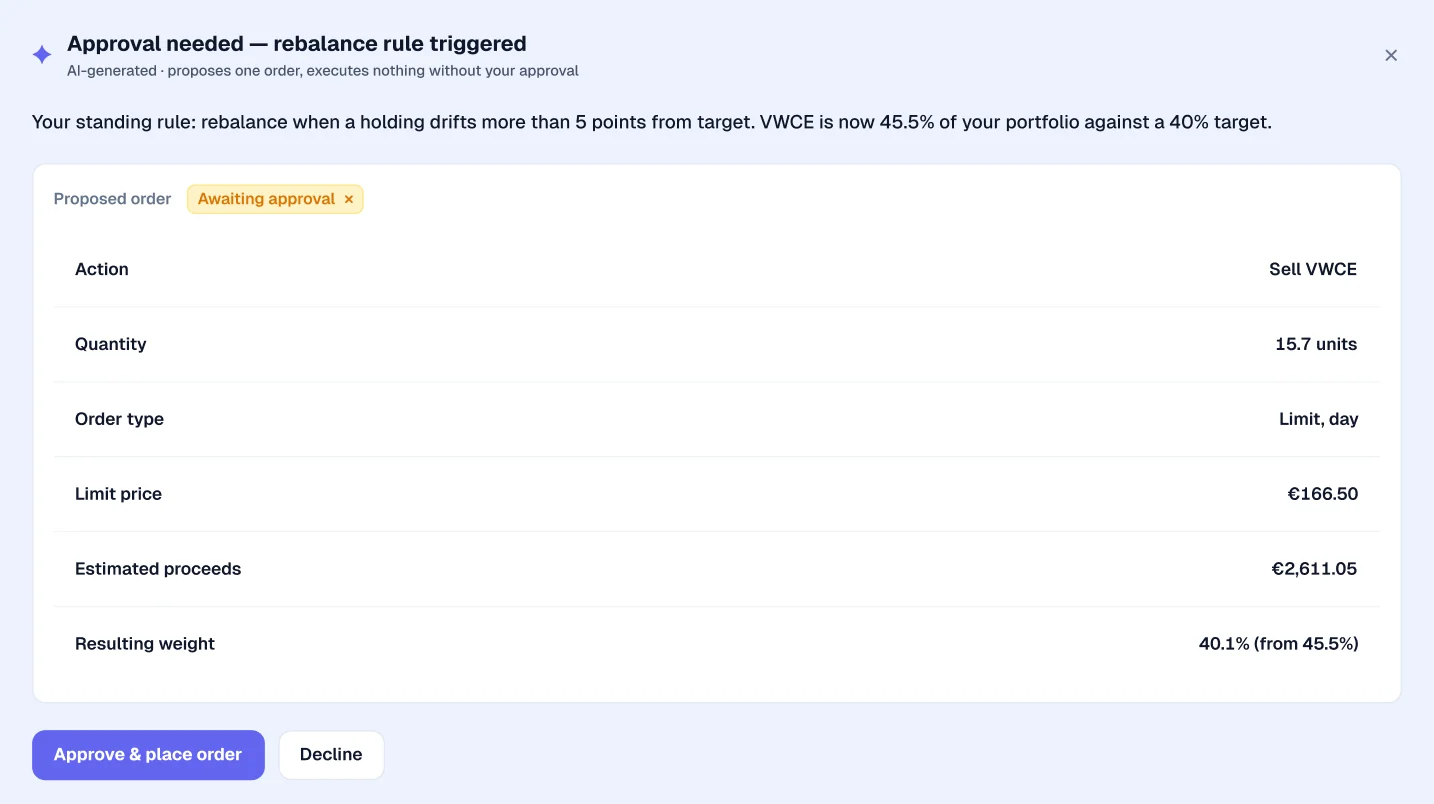
The AI can prepare an order, a transfer or a rebalance. It should never send one. Show the proposal as a table the user can check line by line: instrument, quantity, price, fees and the total, then ask for approval.
In Viola UI’s example, a rebalance rule the user set themselves triggers a proposal to sell part of VWCE. The card shows the action, quantity, order type, limit price, estimated proceeds and the resulting weight. Nothing happens until the user taps Approve & place order.
2. Never give investment or tax advice
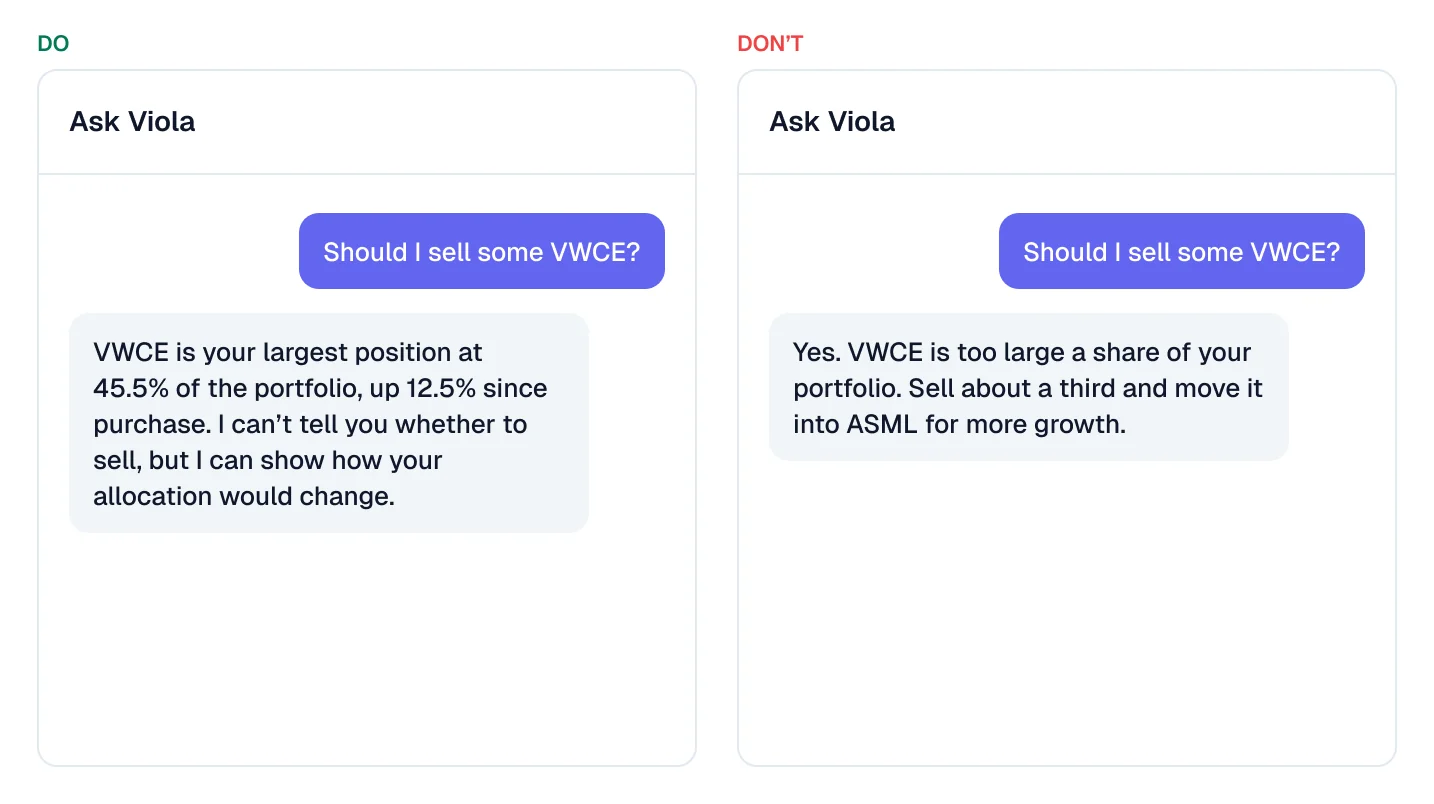
“Your largest position is VWCE at 45.5%” is a fact from the user’s own account. “You should sell some VWCE” is advice, and in most markets that needs a licence. Keep the AI on the first side of that line: report, explain and compare, but don’t recommend.
A tax summary that says “Realised gains this year: €0.00, because nothing was sold” is useful. One that says “You should harvest losses before December” is not something a design pattern can make safe.
3. Never invent a number
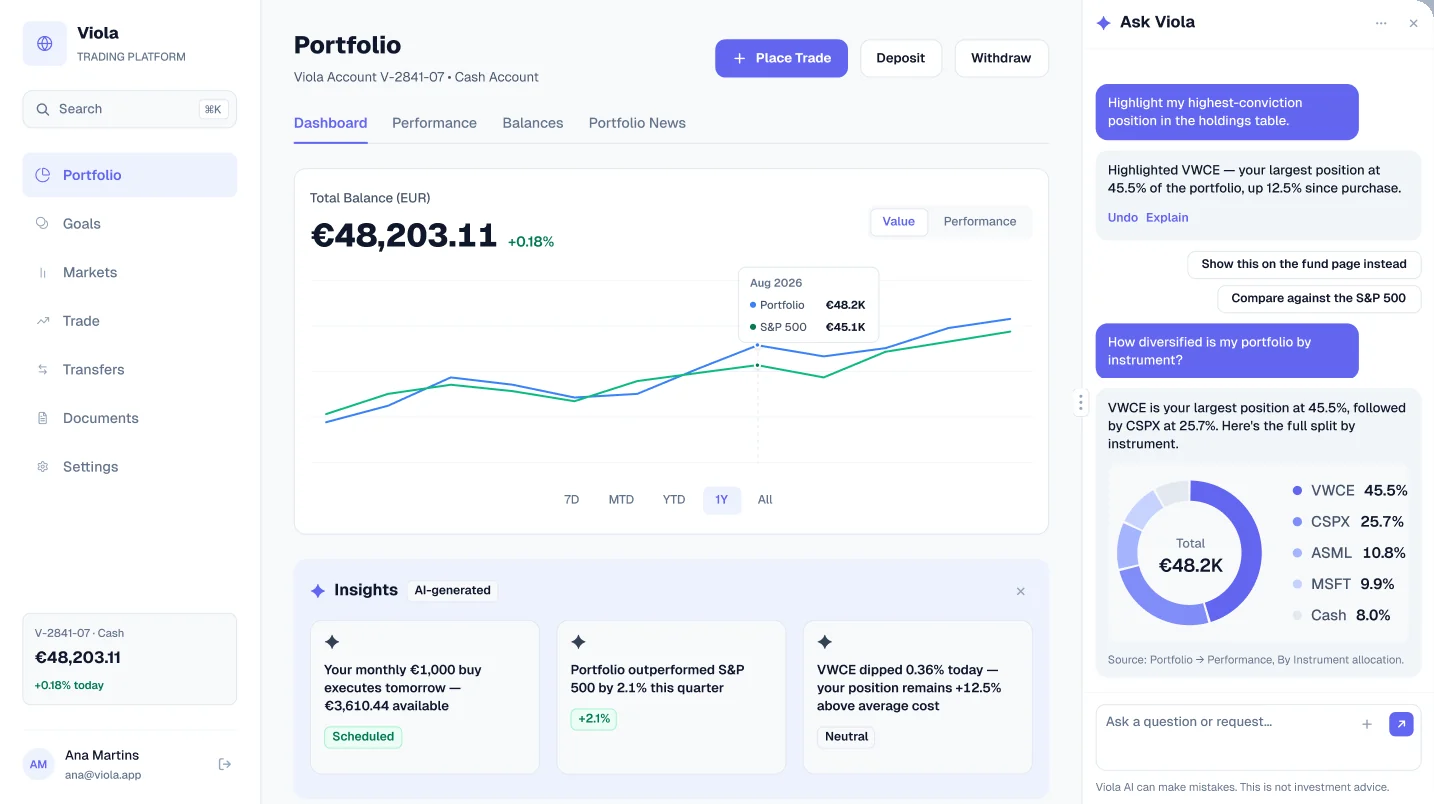
Every figure the AI shows must come from the user’s data, and match the rest of the screen. If the dashboard says €48,203.11, the AI’s answer says €48,203.11 in its text. A short label like “€48.2K” is fine inside a chart, but a sentence should never round a total the screen shows exactly.
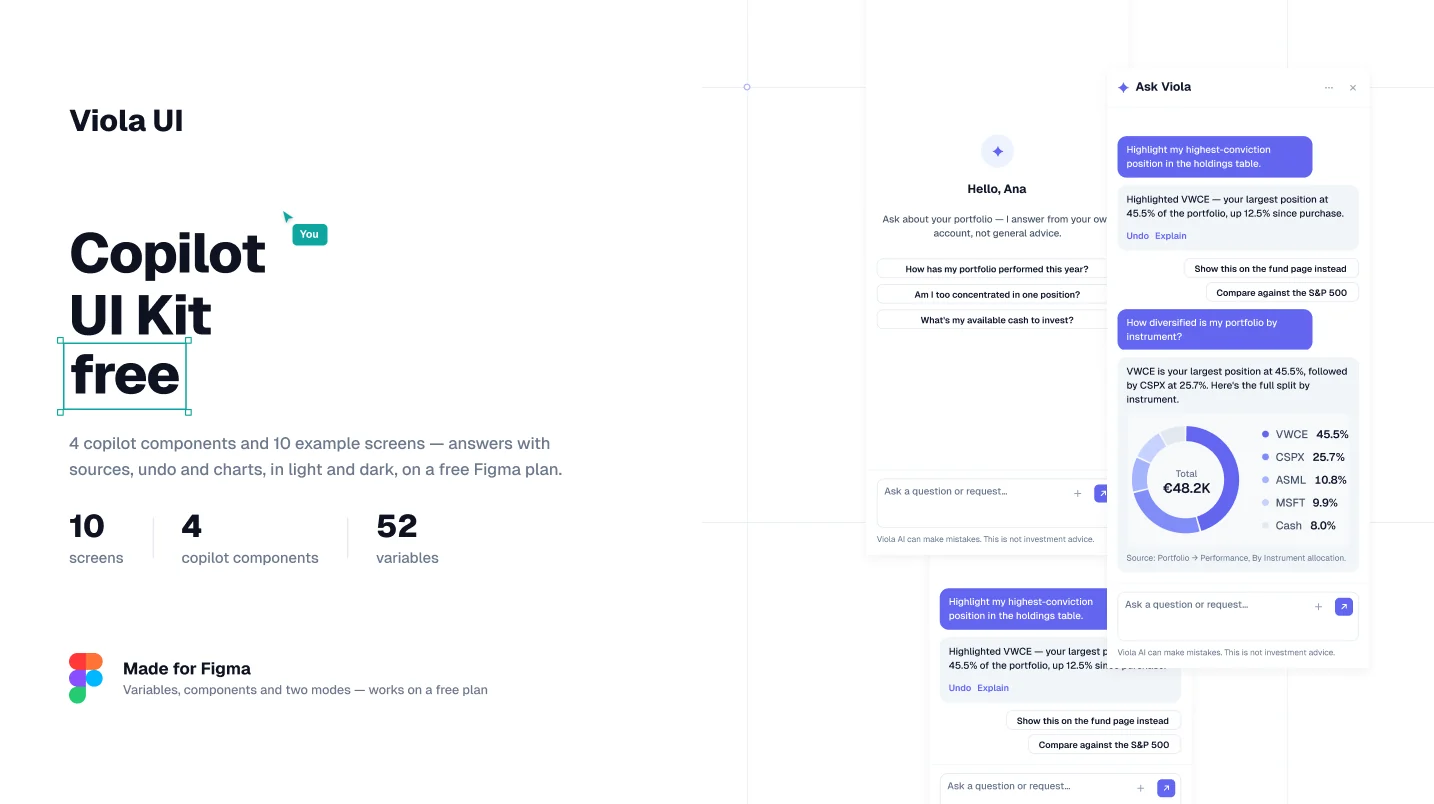
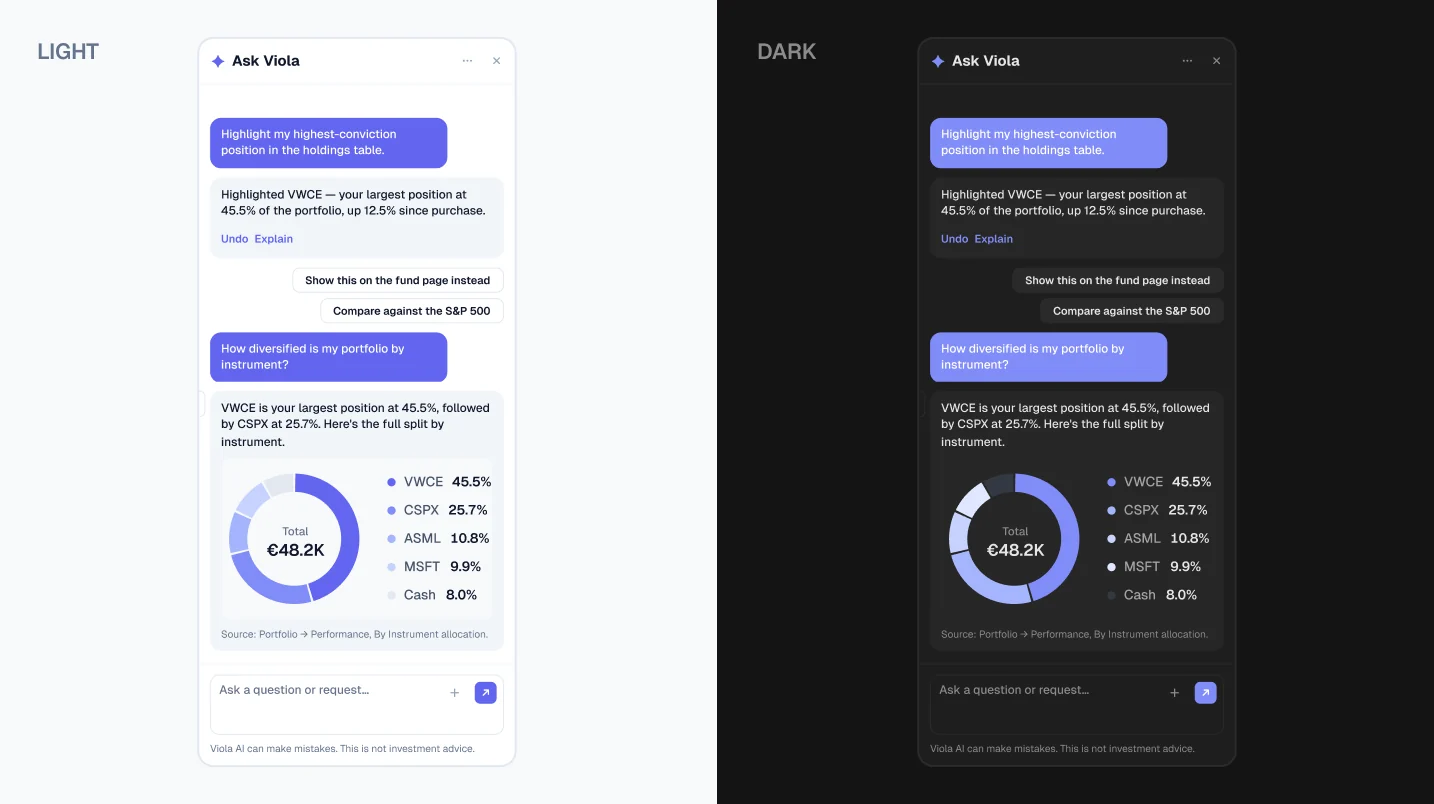
The simplest way to get this right is to reuse the product’s real components. When Viola UI’s copilot answers “How diversified is my portfolio?”, it shows the same allocation donut the portfolio page uses, with the same values, not a new chart drawn for the chat.
4. Never hide that it is AI
Users should always know which content came from the AI. On a mixed screen, label each AI card with an icon and the words “AI-generated”. In a dedicated copilot panel, label the panel once in the header, because everything in it is AI. The labelling section below goes into this.
5. Never be the only way to do something
Every AI card needs a visible close button, and every task the AI helps with must also work without it. If the only way to find a tax document is to ask the copilot, the product has a navigation problem, not an AI feature.
6. Never make a change you can’t undo
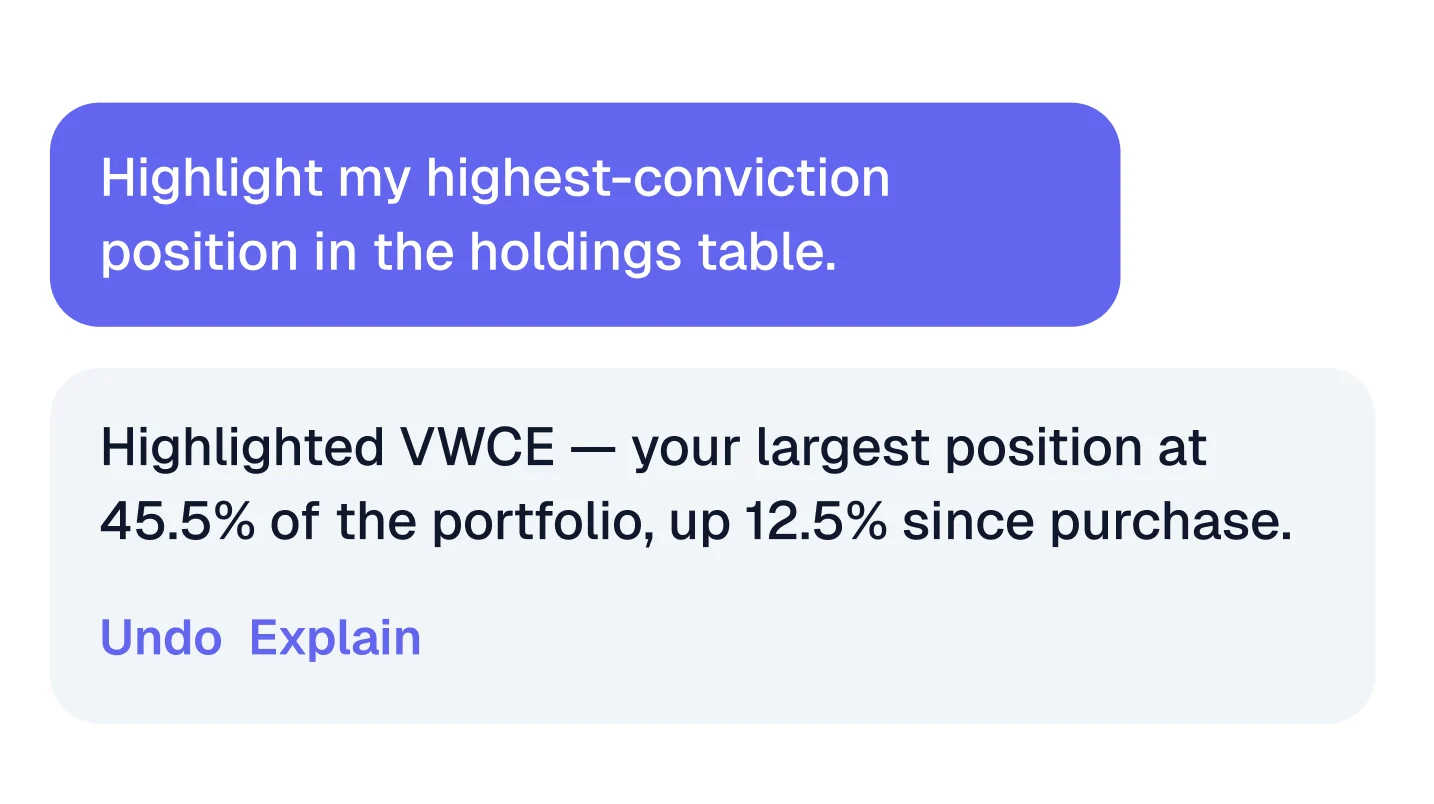
When the AI changes something on the screen, such as highlighting a holding or filtering a table, give the user Undo next to the result. Pair it with Explain, so the user can see why the AI did what it did before deciding to keep it.
7. Never guess silently
If a request is ambiguous, the AI should say what it understood before acting: “Showing your highest-conviction position, measured by weight”. If it can’t answer from the user’s data, it should say so instead of filling the gap with a plausible guess.
The rules at a glance
| The AI should never | Do this instead | Where it shows in the UI |
|---|---|---|
| Move money without approval | Propose, then wait for Approve | Approval card with an order table |
| Give investment or tax advice | Report facts from the user’s own account | Insight and tax summary cards |
| Invent a number | Use the same data and components as the screen | Charts reused inside answers |
| Hide that it is AI | Label cards, or label the panel once | “AI-generated” tag, panel header |
| Be the only way to do something | Make it dismissible, keep normal navigation | Close button on every AI card |
| Make a change you can’t undo | Offer Undo and Explain | Buttons under each edit |
| Guess silently | State what it understood, or say it can’t answer | First line of the reply |
How to label AI content
Label by surface, not by message. The goal is that a user never has to wonder whether a sentence came from the product or from the model.
- AI cards on a normal screen: an AI icon and the words “AI-generated” on every card. Never one without the other, because an icon alone is easy to miss.
- A dedicated copilot panel: label it once, in the header, with the assistant’s name and icon. Tagging every message in a panel that is all AI adds noise and teaches users to ignore the tag.
- A footer line under the input: “Viola AI can make mistakes. This is not investment advice.” It sets expectations without a pop-up the user has to dismiss.
- Sources inside the answer: say where a figure came from, such as “Source: Portfolio › Performance, by instrument allocation”. It makes the answer checkable and keeps the AI honest about rule 3.
Free AI copilot screens for Figma
I’ve released Viola UI’s copilot as a free Figma file, so you can start from patterns that already follow these rules.
- 10 copilot screens, in light and dark
- 4 copilot components: the chat launcher button, the panel’s welcome state and two conversation states
- 52 variables: 39 colours with Light and Dark modes, plus 13 typography values
- Answers that reuse real portfolio charts, with Undo and Explain on every edit
- The “not investment advice” footer and a labelled panel header
Every number in the copilot answers comes from the same €48,203.11 portfolio as the rest of Viola UI.
Free for personal and commercial projects. Get the free Copilot file on Figma Community
Checklist before you ship an AI feature in finance
- Every action that moves money needs an explicit Approve
- The AI reports and explains, and never recommends a trade or a tax move
- Every figure in an answer matches the same figure elsewhere on screen
- Charts in answers reuse the product’s real chart components
- AI cards carry an icon and “AI-generated”; a copilot panel is labelled in its header
- Each answer says where its numbers came from
- Every AI card can be closed, and every task works without the AI
- Every AI edit has Undo and Explain
- Ambiguous requests get a stated interpretation, not a silent guess
- The “can make mistakes, not investment advice” line is visible under the input
FAQ
Can an AI assistant in a finance app place trades?
It can prepare them. The safe pattern is a proposal the user reviews line by line and approves, never an order sent on the AI’s own decision.
Does every AI message need an “AI-generated” label?
Not inside a dedicated copilot panel. Label the panel once in its header. On a normal screen, label every AI card.
How do I stop the AI from giving financial advice?
Design its answers around the user’s own data: what they hold, what changed, what a document says. Explaining and comparing are fine; recommending what to buy, sell or claim is not.
Is the Copilot Figma file really free?
Yes, for personal and commercial projects, including client work. Switching between light and dark works on a free Figma plan.
Need the whole product?
The full Viola UI kit puts the copilot next to 45 desktop screens in light and dark: portfolio, markets, trading, transfers, fund research, documents and settings. Every screen draws from the same portfolio, so the AI’s answers and the rest of the product agree.

WRITTEN BY
Kseniya Savitsyna
Product designer working on fintech & AI products, and the designer behind Viola UI.