A holdings table answers one question: what do I own, and how is it doing? Every column should help answer it, and every number should add up to the total the dashboard shows above it.
The short version: six columns, numbers right-aligned in tabular figures, green and red only on gains and losses, and a table built from columns of cells rather than rows. This guide walks through each decision, with a real example and a free Figma file at the end.
I design fintech interfaces and build Viola UI, a Figma kit for finance products. The holdings table in this guide is the one from Viola UI, released for free as part of a Data Tables file.
Which columns a holdings table needs
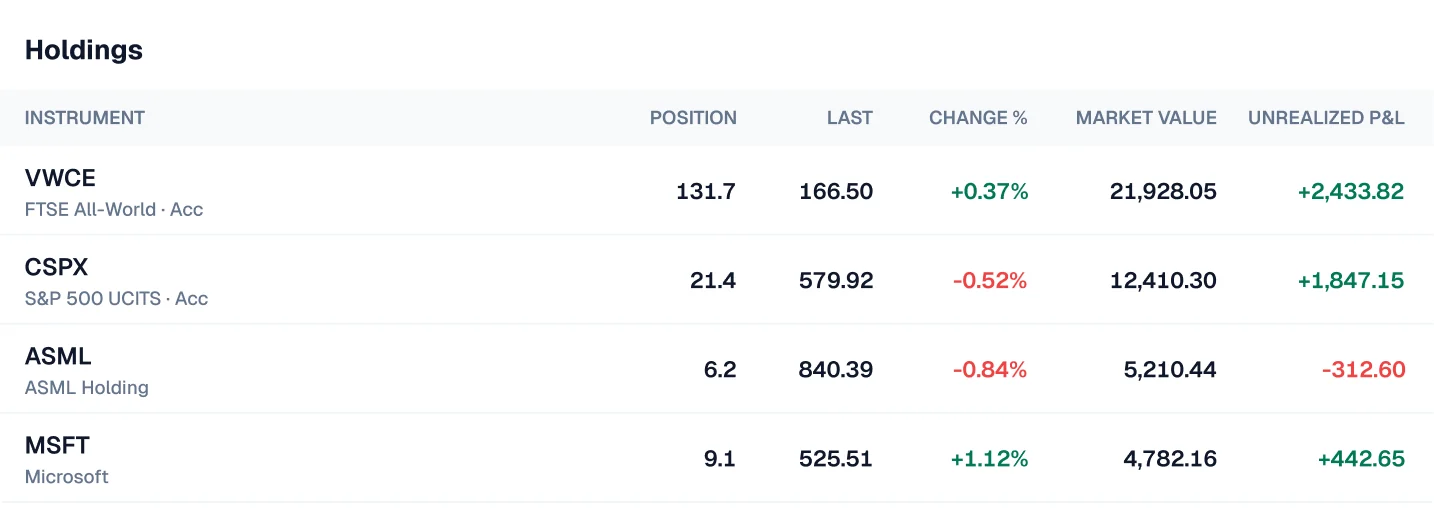
Six columns cover what most investors check, in the order they read them: what it is, how much they hold, what it costs now, how it moved today, what it’s worth, and what they’ve made.
| Column | What it answers | Example (VWCE) |
|---|---|---|
| Instrument | What is it? | VWCE, FTSE All-World · Acc |
| Position | How much do I hold? | 131.7 |
| Last | What does one unit cost now? | 166.50 |
| Change % | How did it move today? | +0.37% |
| Market value | What is my position worth? | 21,928.05 |
| Unrealised P&L | What have I made or lost? | +2,433.82 |
Market value is position times last price: 131.7 × 166.50 = 21,928.05. Positions are often shown rounded, so a row can be off by a cent or two, but never more. If the multiplication is clearly wrong in your mockup, someone will notice.
Optional columns, depending on the product: average cost, weight in the portfolio, a sparkline of recent price, and day P&L in currency. Add them only if your users ask for them; a seventh column is where most holdings tables start to feel cramped.
Alignment, numbers and colour
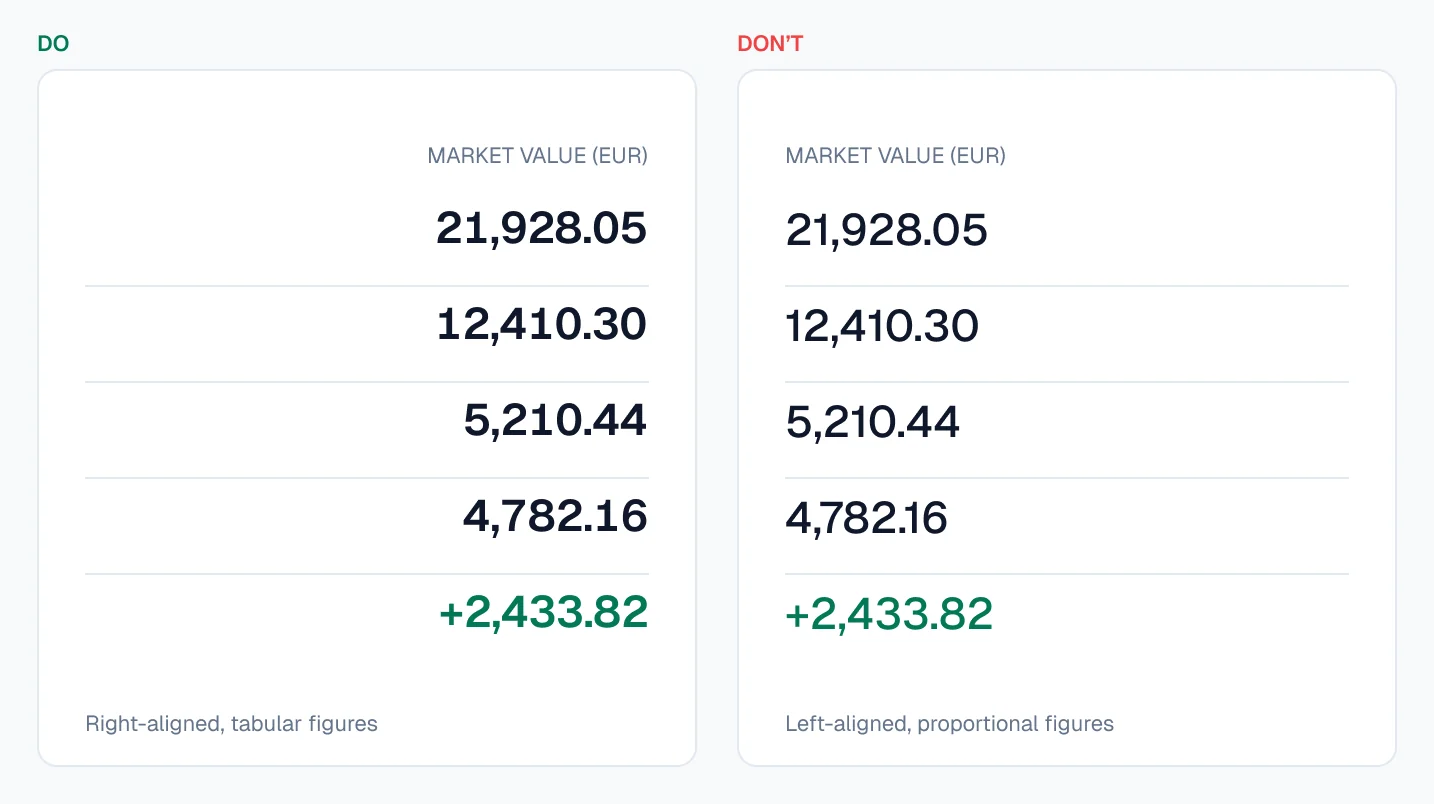
Align text left and numbers right. Right-aligned numbers line up by their decimal point, so 21,928.05 and 4,782.16 can be compared at a glance. Align each header the same way as its column.
Use tabular figures for every number. In tabular figures every digit has the same width, so columns stay straight and values don’t jump when prices update. In Geist and most UI fonts it’s a font feature, not a separate font; in Figma, set it once in a text style for table numbers.
Give every change a sign. +0.37% and −0.84%, never a coloured 0.84% on its own. The sign carries the meaning for anyone who can’t tell green from red.
Keep green and red for gains and losses only. Use them on Change % and Unrealised P&L. Ticker badges, buttons and status tags should never be green or red, or the colour stops meaning money.
Keep decimals consistent per column. Two decimals for currency, one or two for percentages, and as many as the asset needs for positions (131.7 units of a fund, 0.0042 of a bitcoin).
Say the currency once. Put it in the table title or header, such as “Holdings (EUR)”, instead of a € in front of every cell.
Building it in Figma: columns, not rows
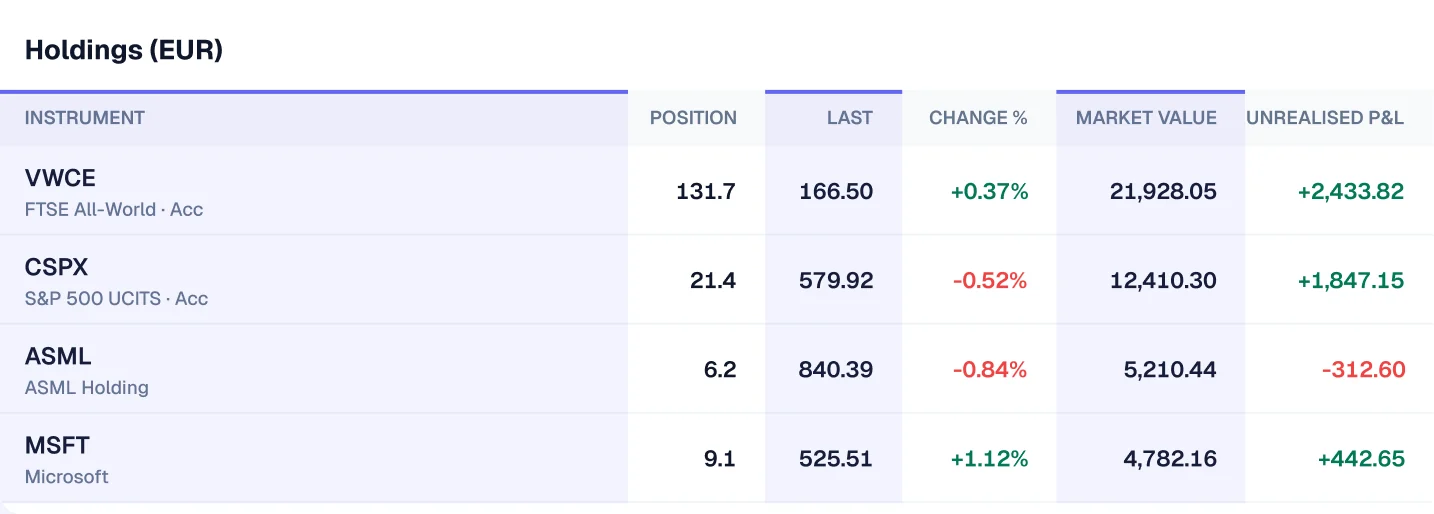
Build the table as vertical columns of cells, not horizontal rows. In a row-based table, every row has to repeat the column widths, and changing one width means editing every row. In a column-based table, each column sets its own width once, and every cell in it follows.
- 1. Make one cell component with variants. Start with a header cell, a text cell (title and subtitle), a number cell and a P&L number cell, each with left and right alignment where it makes sense. Use auto layout with fixed padding, and a 1px bottom border instead of separate divider lines.
- 2. Build each column as a vertical auto-layout frame. A header cell on top, then one cell per holding. Set the column’s width once; the cells fill it.
- 3. Put the columns side by side in a horizontal auto-layout frame. Let the Instrument column fill the remaining width and give the number columns fixed widths.
- 4. Write headers in uppercase in the text itself, such as “MARKET VALUE”, rather than with Figma’s text-case setting. Changing case on a text that has a style applied can detach it from the style.
- 5. Remove the bottom border on the last cell of each column, so the table ends on the card edge, not on a double line.
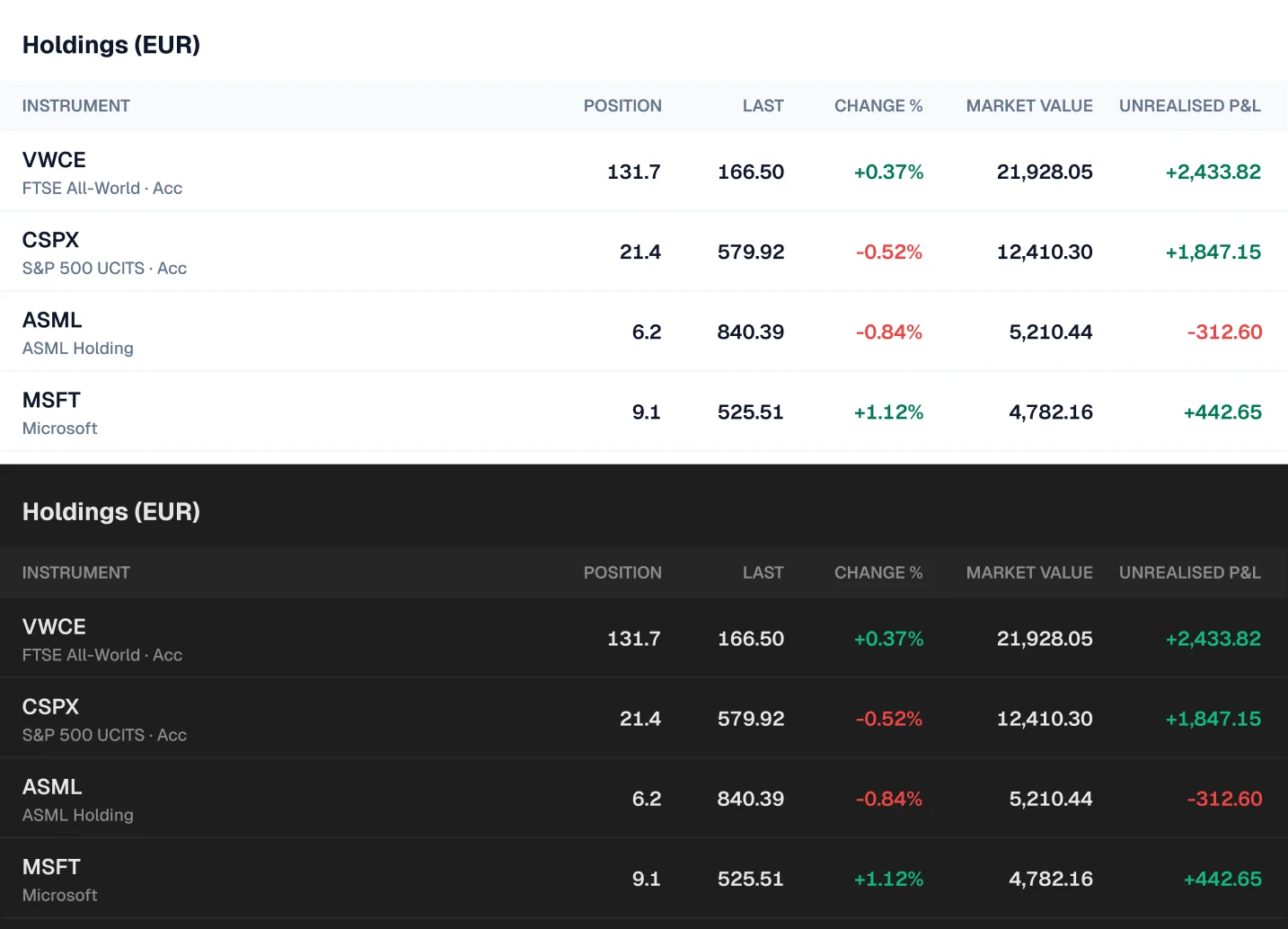
- 6. Bind every colour to a variable, including the P&L greens and reds, so the same table works in light and dark by switching the mode.
States and edge cases
A table with four tidy rows is the easy version. Design these before handoff:
- Empty: a new account holds nothing. Show one line, “You don’t hold any investments yet”, with a way to make the first one, not an empty grid of headers.
- Loading: keep the headers and show skeleton rows in the shape of the cells, so the layout doesn’t jump when data arrives.
- Long names: “Vanguard FTSE All-World UCITS ETF (USD) Accumulating” won’t fit. Show the ticker as the title and a shortened name as the subtitle, truncated with an ellipsis, with the full name on hover.
- Losses: a negative row needs the minus sign and red on both Change % and P&L, as ASML shows below at −312.60. Check your negative colour still passes contrast on light and dark.
- Large numbers: test a seven-digit market value. If the column only fits five digits, it will break on a real portfolio.
- Sorting: most people sort by market value or P&L. Show the active sort in the header with an arrow, and default to market value, largest first.
Make the totals agree with the dashboard
The holdings table is where users check the dashboard’s math. If the rows don’t add up to the total above, they stop trusting both. Here is the full example from Viola UI:
| Instrument | Position | Last | Change % | Market value (EUR) | Unrealised P&L (EUR) |
|---|---|---|---|---|---|
| VWCE | 131.7 | 166.50 | +0.37% | 21,928.05 | +2,433.82 |
| CSPX | 21.4 | 579.92 | −0.52% | 12,410.30 | +1,847.15 |
| ASML | 6.2 | 840.39 | −0.84% | 5,210.44 | −312.60 |
| MSFT | 9.1 | 525.51 | +1.12% | 4,782.16 | +442.65 |
| Total | 44,330.95 | +4,411.02 |
The market values add up to €44,330.95. Add €3,872.16 in cash and you get the dashboard’s €48,203.11. Every number in the table can be checked against another screen, which is exactly what makes a mockup believable in a review or a usability test.
Notice that CSPX is down 0.52% today but still up 1,847.15 since purchase. Change % and Unrealised P&L answer different questions, which is why both columns are worth keeping.
Free holdings table for Figma
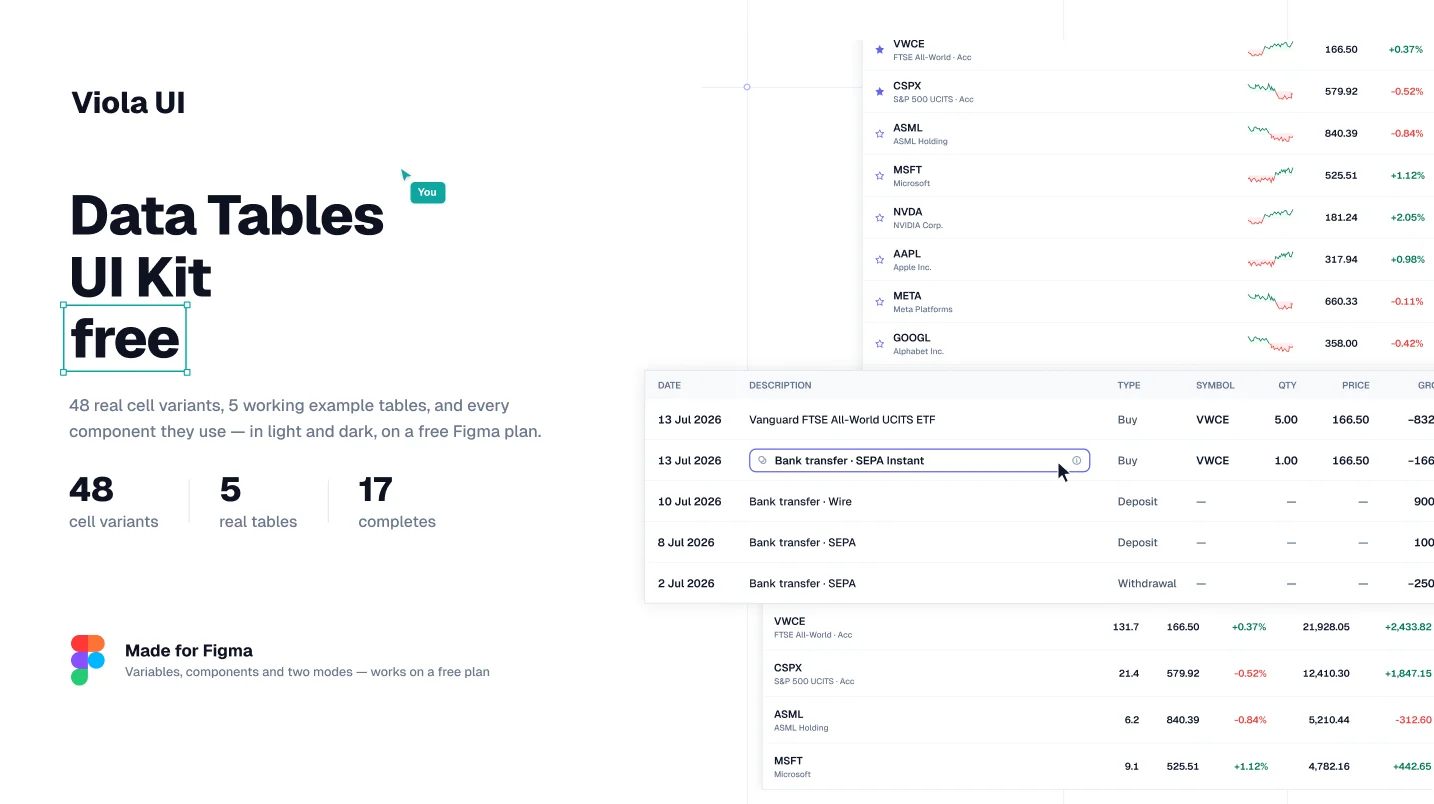
The holdings table above is free to download as part of Viola UI’s Data Tables file, so you can start from a table that already follows these rules.
- 5 real tables, including the holdings table from this guide
- 48 table cell variants: headers, text, numbers and P&L
- 17 components
- Built as columns of cells, with colours bound to variables
- Every row drawn from the same portfolio, so the totals add up
Free for personal and commercial projects. Get the free Data Tables file on Figma Community
Checklist before handoff
- Six columns or fewer, in reading order
- Text left-aligned, numbers and their headers right-aligned
- Tabular figures on every number
- A sign on every change, green and red only on gains and losses
- Currency stated once, in the title or header
- Market value equals position times last price, within rounding
- Market values add up to the holdings total on the dashboard
- Empty, loading, long-name and loss states designed
- A seven-digit value fits its column
- Colours bound to variables, checked in light and dark
FAQ
What columns should a holdings table have?
Usually six: instrument, position, last price, change %, market value and unrealised P&L. Average cost, weight and a sparkline are common extras.
Should a table be built from rows or columns in Figma?
Columns. Each column sets its width once, so resizing or reordering is one change instead of one per row.
Why right-align numbers?
So the digits line up by place value and amounts can be compared by length at a glance. Combine it with tabular figures.
Is the Data Tables Figma file free?
Yes, for personal and commercial projects, including client work.
Need the whole product?
The full Viola UI kit puts this table into 45 desktop screens in light and dark: portfolio, markets, trading, transfers, fund research, documents and settings, all drawn from the same portfolio. $49 for one designer, $179 for your whole company.

WRITTEN BY
Kseniya Savitsyna
Product designer working on fintech & AI products, and the designer behind Viola UI.