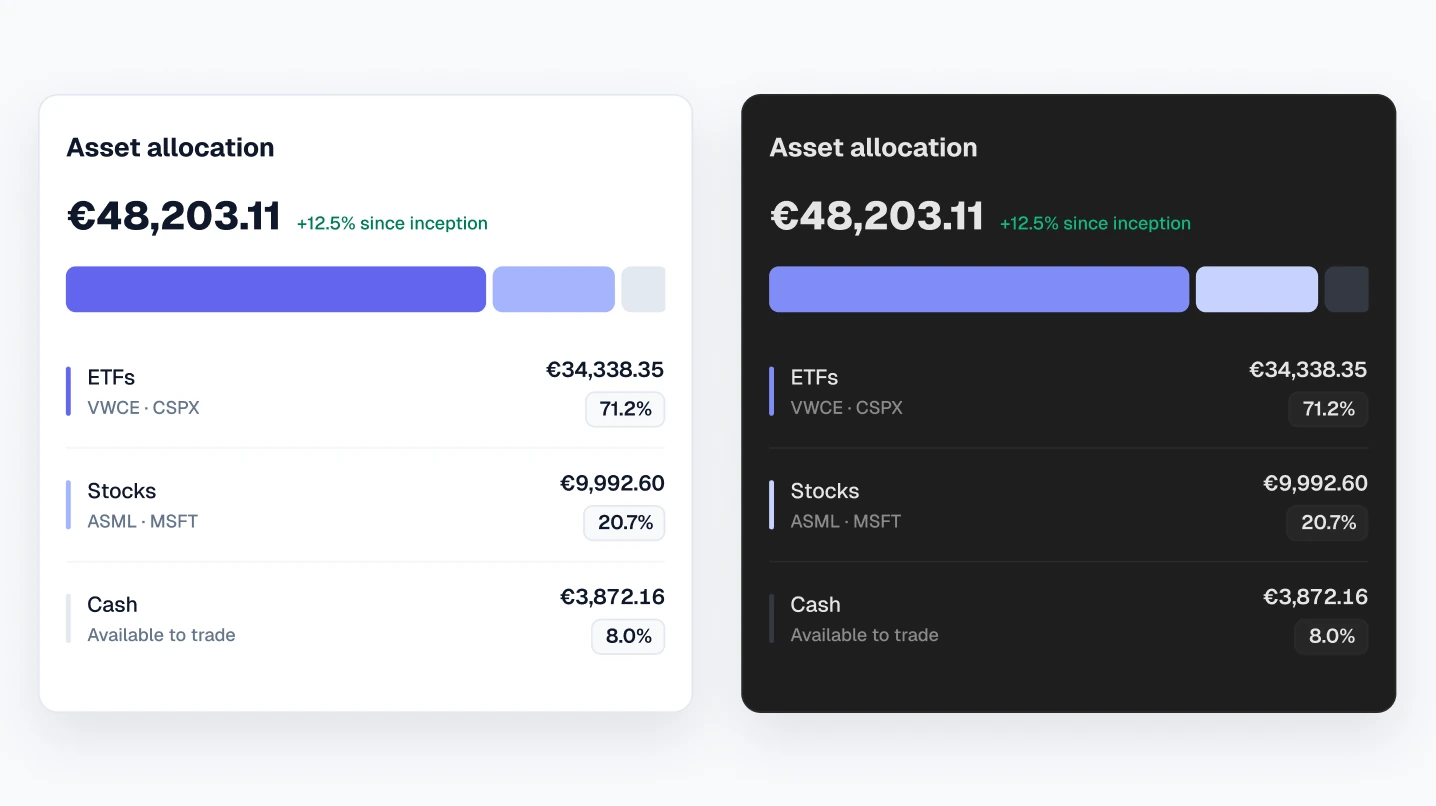
Variable modes are how Figma does dark mode properly: one set of screens, two sets of colour values, and a switch between them. The catch is that adding modes to a collection is a paid feature. Figma lists up to 10 modes per collection on Professional and 20 on Organization.
The free plan can still use a file that already has a Light and a Dark mode. You duplicate it and switch modes on any frame. I tested this on a free Starter account with Viola UI’s free file, and the steps below are what worked.
What the free plan can and can’t do
| Task | Free (Starter) | Professional |
|---|---|---|
| Use colour variables in a file | Yes | Yes |
| Switch between modes a file already has | Yes (tested) | Yes |
| Add modes to a collection | No | Up to 10 per collection |
| Publish variables as a team library | No | Yes |
So on the free plan, the work of setting up Light and Dark has to happen in the file you start from. That’s what a kit with modes already built gives you.
Why not just duplicate the frames?
The free-plan workaround most people reach for is a second copy of every screen, recoloured by hand. It works once. After that, every change has to be made twice, and the two versions drift apart. A mode keeps one frame per screen, so a fix in light is a fix in dark.
How modes switch
Modes are set on frames and sections, not on single layers. Every layer that uses a variable starts in Auto, which means it takes the mode of the frame it sits in. If that frame is also on Auto, Figma keeps looking up until it finds a container with a mode set, and otherwise uses the collection’s default.
Two things follow. Set the mode once on the screen frame and everything inside follows. And a layer only changes if it uses a variable with more than one mode; a raw hex colour stays exactly as it is.
Step by step: switch to dark on a free plan
- 1. Duplicate the file. Open Viola UI’s free file on Figma Community and duplicate it to your drafts.
- 2. Select a screen. Click the frame of the Portfolio dashboard, or a section to switch several screens at once.
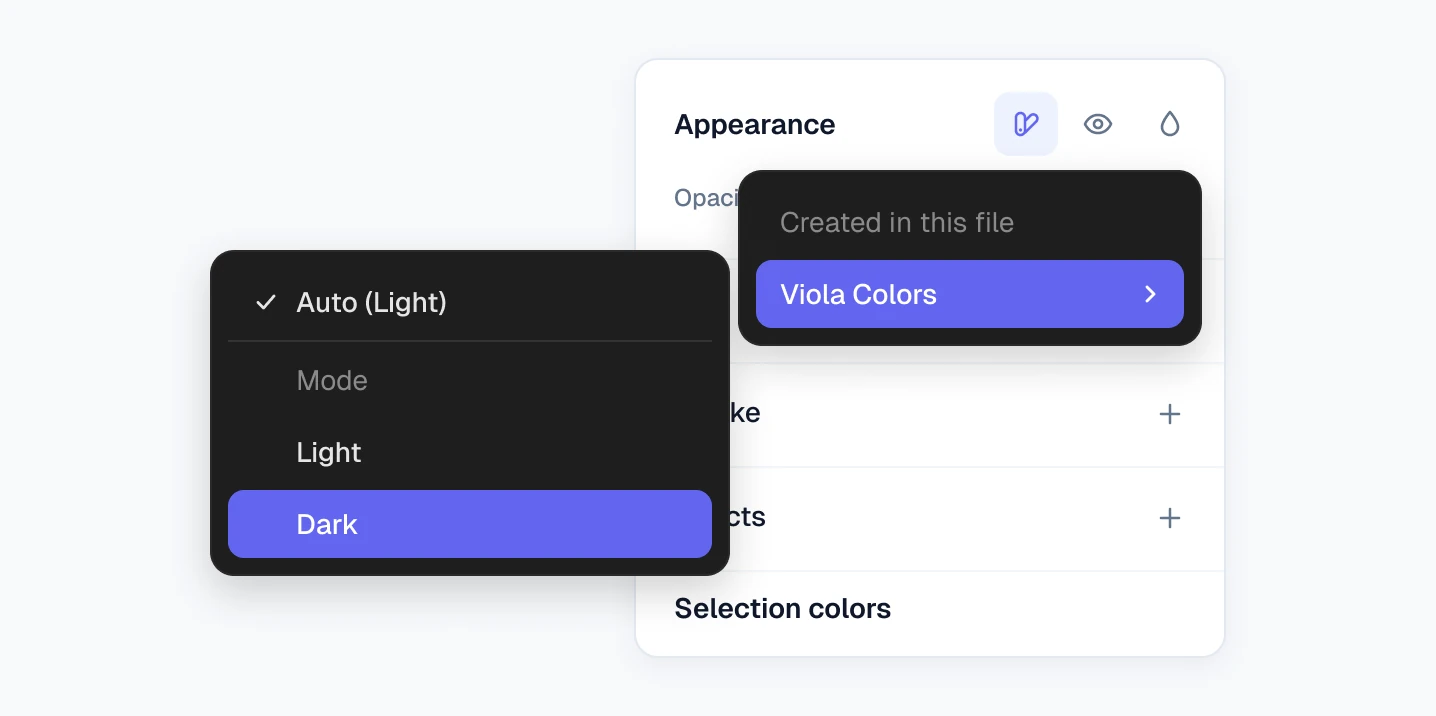
- 3. Apply the mode. In the right sidebar, under Appearance, choose Apply variable mode, then Viola Colors → Dark.
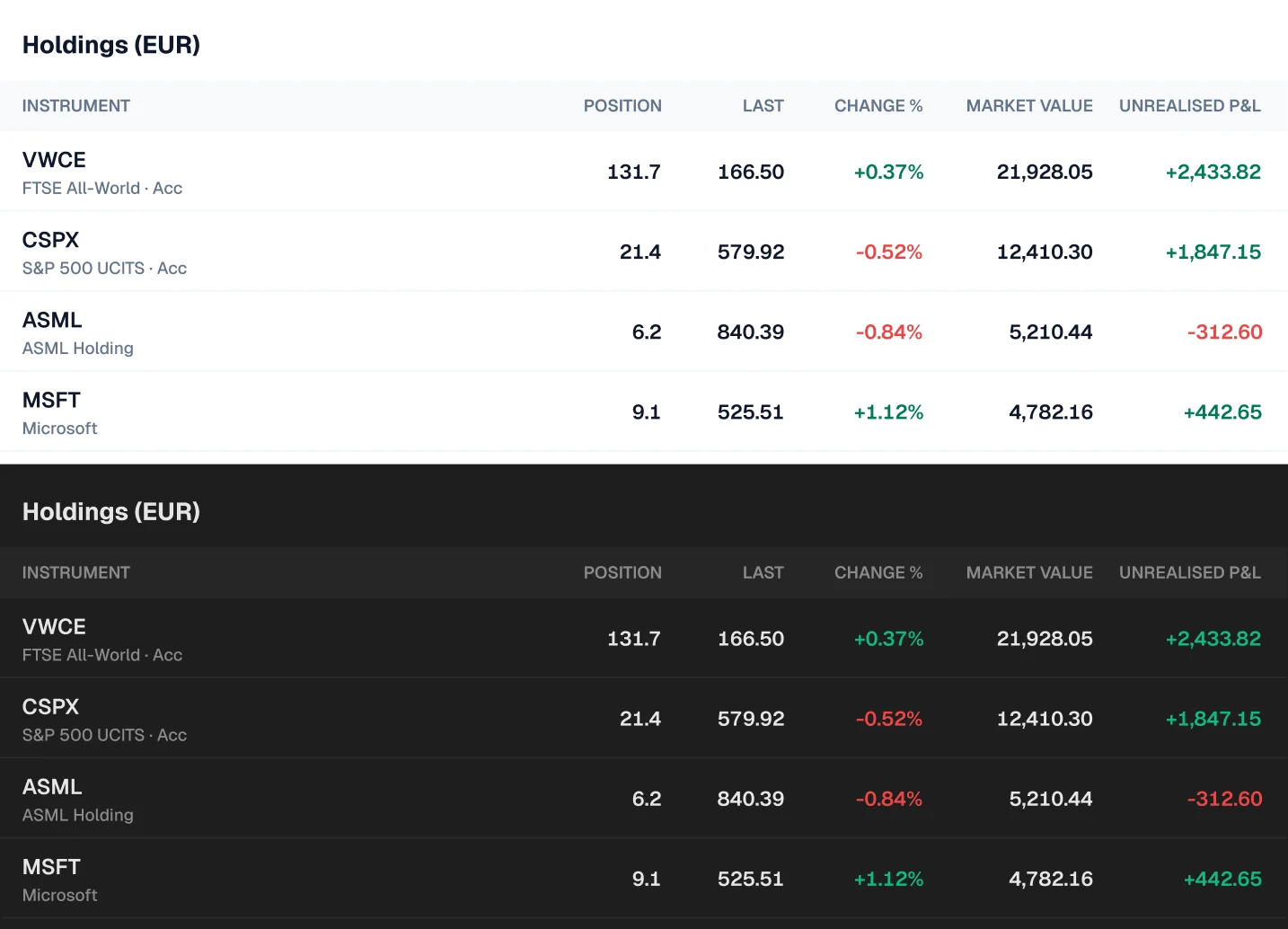
- 4. Check the result. Backgrounds, text, borders, charts and P&L colours all switch, because each is bound to a variable.
Why nothing can be a raw hex
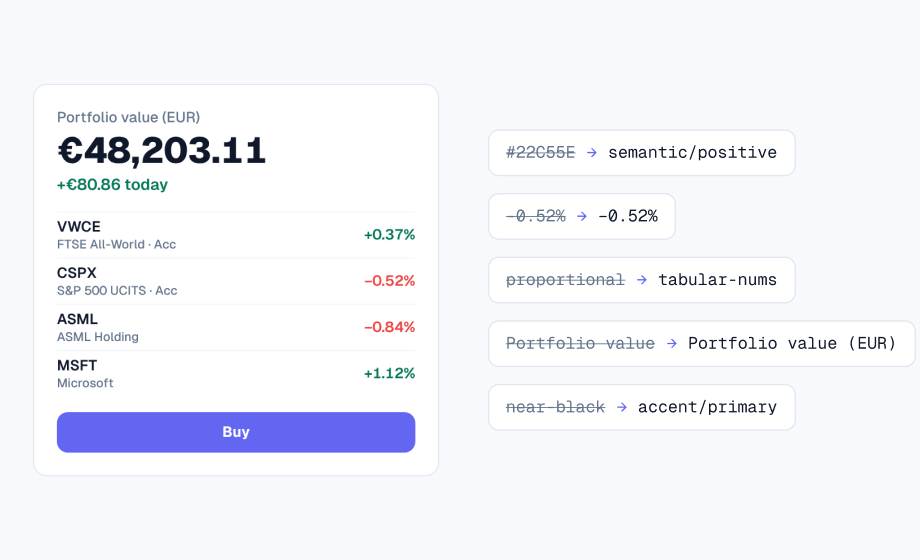
Dark mode with variables only works if every colour is a variable. One hard-coded white background or grey border stays the same in both modes and shows up as a bright patch on a dark screen. In Viola UI nothing is a raw hex, so every screen switches cleanly.
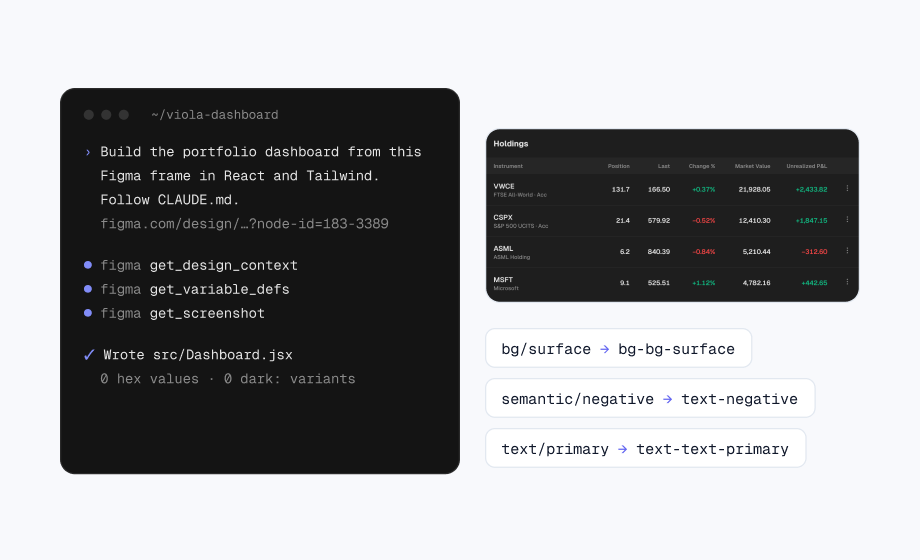
- Fills: backgrounds, cards, rows and buttons are bound to surface and accent variables.
- Text: every text layer uses a text variable, never a picked colour.
- Borders: hairlines use border variables, so they stay visible but quiet in dark.
- Charts: lines, donuts and candles have their own tokens, separate from P&L green and red.
Picking dark values that work
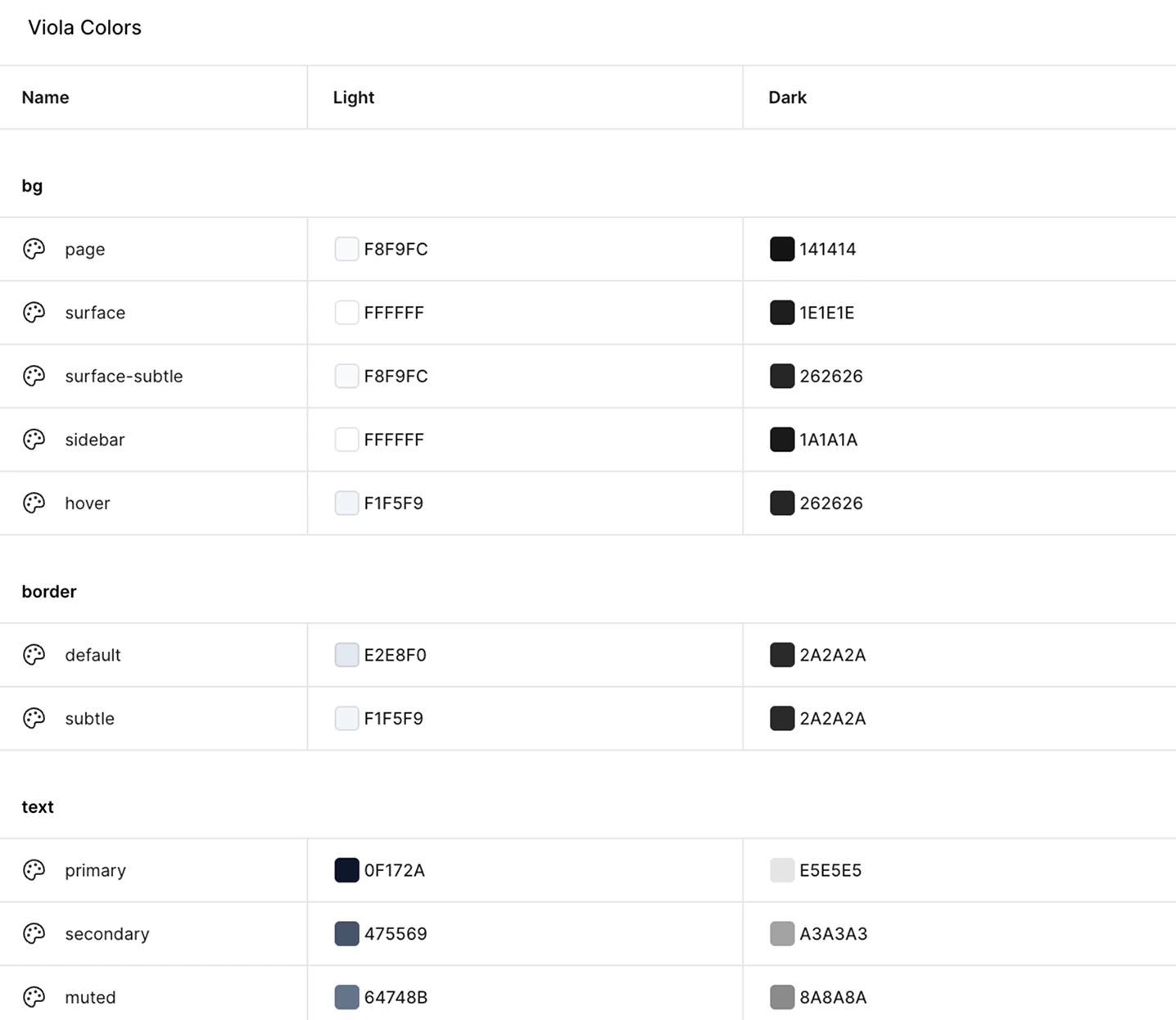
A dark mode isn’t the light mode inverted. Surfaces get darker in steps, text drops from pure white, and colours that carry meaning get lighter so they stay readable. These are Viola UI’s values:
| Token | Light | Dark |
|---|---|---|
| background/page | #F8F9FC | #141414 |
| background/surface | #FFFFFF | #1E1E1E |
| text/primary | #0F172A | #E5E5E5 |
| text/secondary | #475569 | #A3A3A3 |
| accent/primary | #6366F1 | #818CF8 |
| semantic/positive | #047857 | #10B981 |
Check contrast in both modes, not just light. WCAG 2.2 asks for at least 4.5:1 for normal text. The same green that passes on white fails on a dark surface, which is why Dark points at a lighter value:
| Green on surface | Contrast | For text |
|---|---|---|
| #047857 on #FFFFFF (Light) | 5.48:1 | Passes |
| #047857 on #1E1E1E (not switched) | 3.04:1 | Fails |
| #10B981 on #1E1E1E (Dark) | 6.57:1 | Passes |
Contrast ratios calculated with the WCAG 2 formula on 28 October 2026.
What you still need a paid plan for
- A third mode, such as high contrast or a second brand, means adding a mode to the collection.
- A shared library, so several files use the same variables, needs publishing, which is on paid plans.
- Switching modes in a prototype, with the Set variable mode action, uses variables in prototypes, which Figma puts on education and paid plans.
Checklist before you share a dark file
- Every fill, stroke and text colour is bound to a variable
- Charts use their own tokens, not P&L green and red
- Surfaces are separated by fill or hairline, not shadow, which almost disappears on dark
- Logos and images have a version that works on dark
- The mode is set on the screen frame or section, not on single layers
- Every screen has been checked in both Light and Dark
Free Figma file with Light and Dark built in
Viola UI’s free kit has the modes already set up, so you can switch them on the free plan:
- 45 colour tokens, each with a Light and a Dark value
- 25 text styles, with tabular figures on every money style
- 190+ component variants: buttons, table cells, tabs, tags, sidebar and charts
- The Portfolio dashboard, complete, in light and dark
Free for personal and commercial projects, including client work. Get the free Viola UI kit on Figma Community.
FAQ
Can I use variable modes on Figma’s free plan?
You can switch between modes that a file already has, which I tested on a free Starter account. Adding modes to a collection needs a paid plan.
How many modes do paid plans allow?
Figma lists up to 10 modes per collection on Professional, up to 20 on Organization, and unlimited modes with extended collections on Enterprise.
Why didn’t my frame switch to dark?
Either the layers inside use raw hex colours instead of variables, or the mode is set somewhere else. Set it on the screen frame or its section, and check that the colours are variables with more than one mode.
Is the Viola UI kit free?
The Viola UI free kit is free on Figma Community for personal and commercial projects. The full kit, with 100+ screens in light and dark, is $49 for one designer.
Need the whole product?
The full Viola UI kit has 100+ screens, every one in light and dark, on the same variables, including trading, transfers, fund research, settings and onboarding. $49 for one designer, $179 for your whole company.
Sources
- Compare Figma plans and features, Figma Help Center, read 28 October 2026
- Modes for variables, Figma Help Center, read 28 October 2026
- Guide to variables in Figma, Figma Help Center, read 28 October 2026
- Understanding Success Criterion 1.4.3: Contrast (Minimum), W3C

WRITTEN BY
Kseniya Savitsyna
Product designer working on fintech & AI products, and the designer behind Viola UI.